
Tip & Trick
Microsoft Teams is a powerhouse for collaboration, but most users only scratch the surface. These 10 underutilized 2023 features will transform how you communicate, organize, and automate workflows—saving you hours weekly.
AI-Powered Meeting Recap in Teams
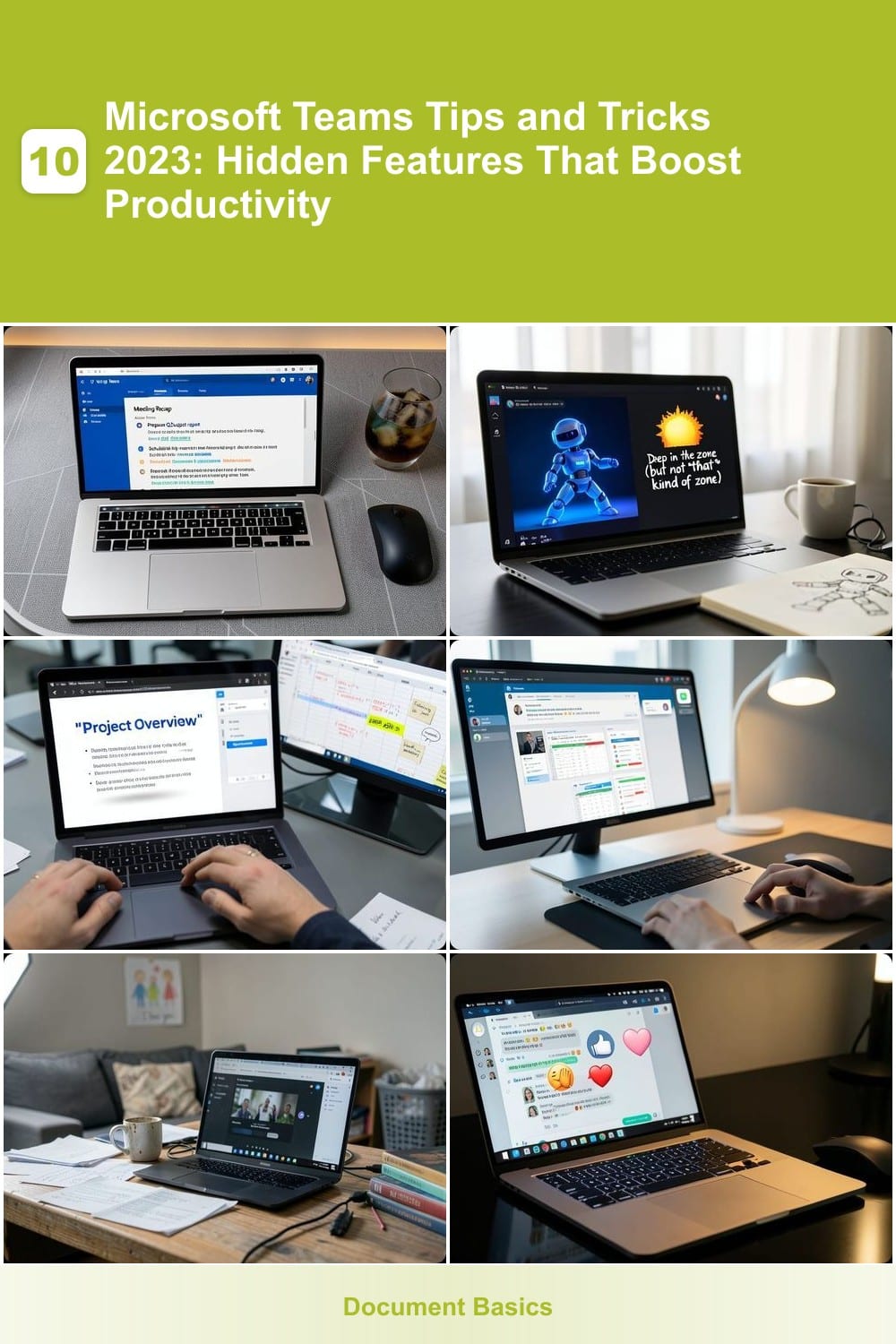
Forgot what was decided in yesterday’s meeting? Microsoft Teams’ AI-Powered Meeting Recap feature now automatically generates searchable summaries with action items, timestamps, and key decisions—all while you’re still in the call. No more frantic note-taking or replaying recordings to catch missed details.
After the meeting ends, click the three-dot menu in the chat, then select "Meeting Recap" to view the AI-generated notes. The tool highlights action items with deadlines and even suggests follow-up tasks in Planner or Outlook. Works seamlessly with Teams Premium (included with Microsoft 365 E3/F3 licenses) and supports multi-speaker meetings for accurate attribution.
Perfect for managers juggling client calls, legal teams reviewing compliance discussions, or remote workers who multitask during meetings. Say goodbye to lost details and hello to zero-config productivity. ✨
Customizable Status Messages with GIFs
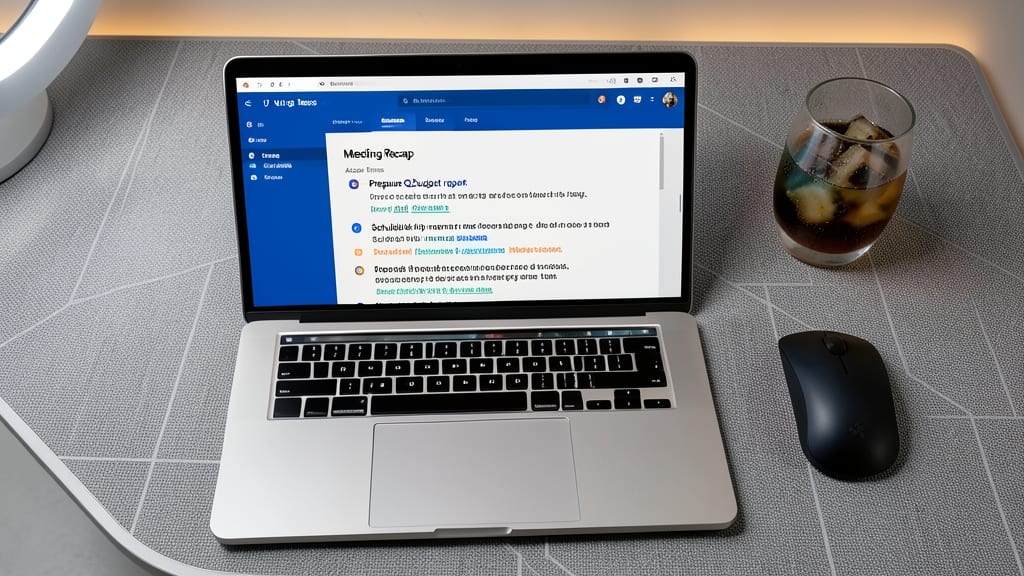
Tired of generic status messages like "In a meeting" or "Busy"? Microsoft Teams now lets you express yourself with GIFs, emojis, and custom text—turning your availability into a visual conversation starter. This isn’t just about typing faster; it’s about making remote work feel more human and intentional.
To set up a custom status, click your profile picture in the top-right corner, then select "Edit my status." Here, you can add a short text message (e.g., "Debugging code—DM for urgent issues"), pair it with a GIF (like a coffee cup for "working late" or a brain for "deep focus"), or use emojis (🚀 for "launching soon" or 🎉 for "weekend mode"). The feature syncs across all your devices, so your team always knows how to reach you—without the awkwardness of a vague "BRB."
Remote teams, freelancers, and hybrid workers will love this for breaking the ice in chats or signaling focus without words. It’s the digital equivalent of a whiteboard mood indicator—just more dynamic. 💡
One-Click Screen Sharing with Spotlight
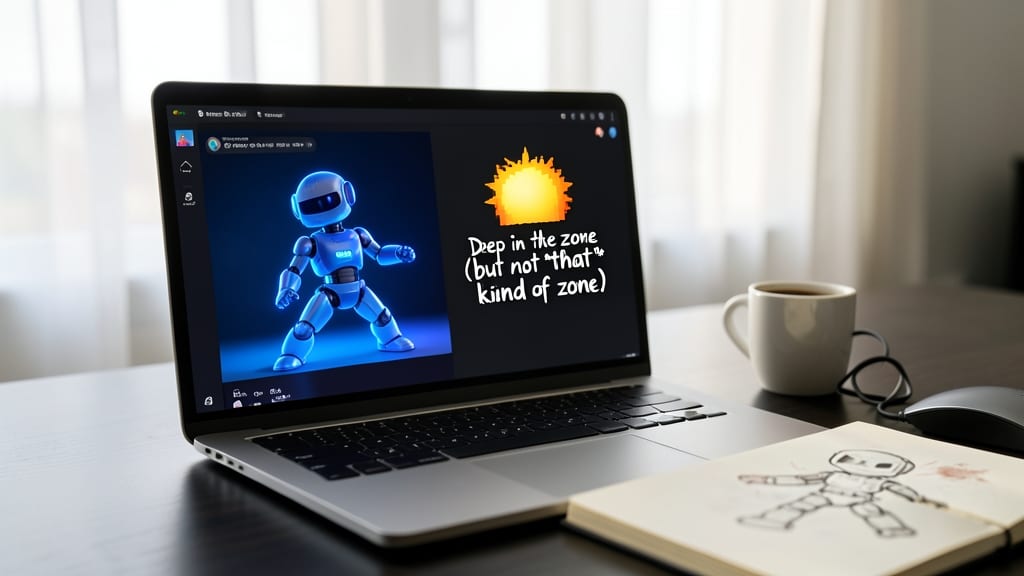
Tired of sharing your entire screen during presentations, only to accidentally reveal that half-finished spreadsheet or embarrassing browser tab? Microsoft Teams’ Spotlight feature lets you highlight just one app window—keeping the focus where it belongs.
To use it, start your screen share as usual, then click the three-dot menu in the share tray and select "Spotlight window." Instantly, your chosen window (like PowerPoint or Excel) becomes the center of attention, while the rest of your screen blurs into the background. No extra tools or extensions needed—this built-in feature works seamlessly with 4K resolution and supports multiple monitors for added flexibility.
Trainers, educators, and sales professionals will love this for keeping discussions laser-focused. Even casual users can avoid awkward moments by hiding distractions with a single click. ✨
Teams Tabs for Seamless App Integration
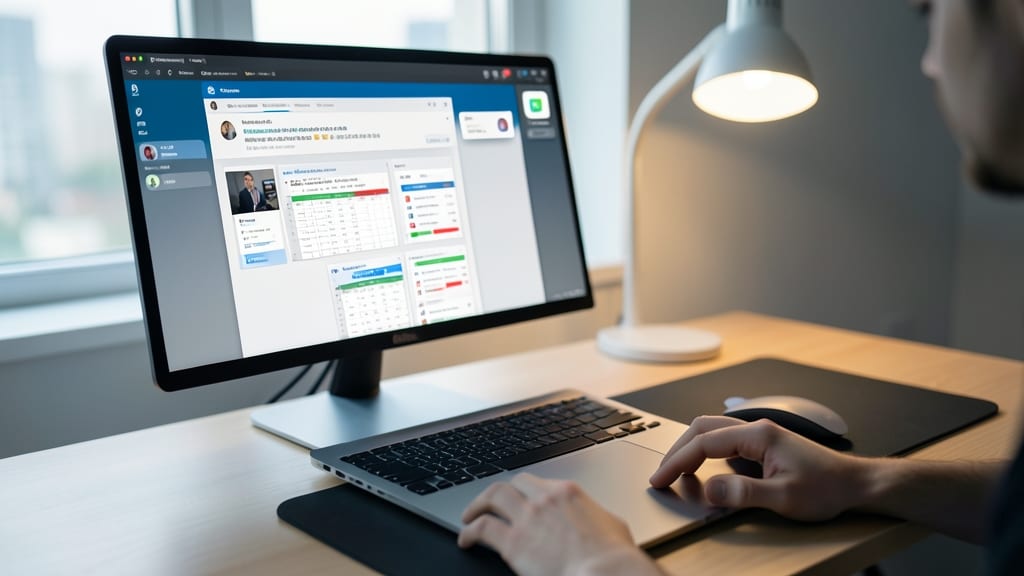
Tired of bouncing between apps during meetings or project chats? Teams Tabs lets you embed PowerPoint, Excel, or even third-party tools directly into chat windows—no more tab-switching or losing context. Simply drag and drop files or apps into your chat, and they’ll appear as interactive tabs alongside your conversation.
This feature works seamlessly with Office 365 apps (Word, Excel, PowerPoint) and supports third-party integrations like Trello, Asana, or even Google Drive files. You can annotate documents in real time, reference specific slides without attachments, and keep everything visible in one place. Perfect for brainstorming sessions or client reviews where visuals are key.
Ideal for project managers, designers, or remote teams, this trick cuts down on back-and-forth messages and keeps everyone aligned. Give it a try next time you’re collaborating on a shared file! ✨
Background Blur for Virtual Meetings
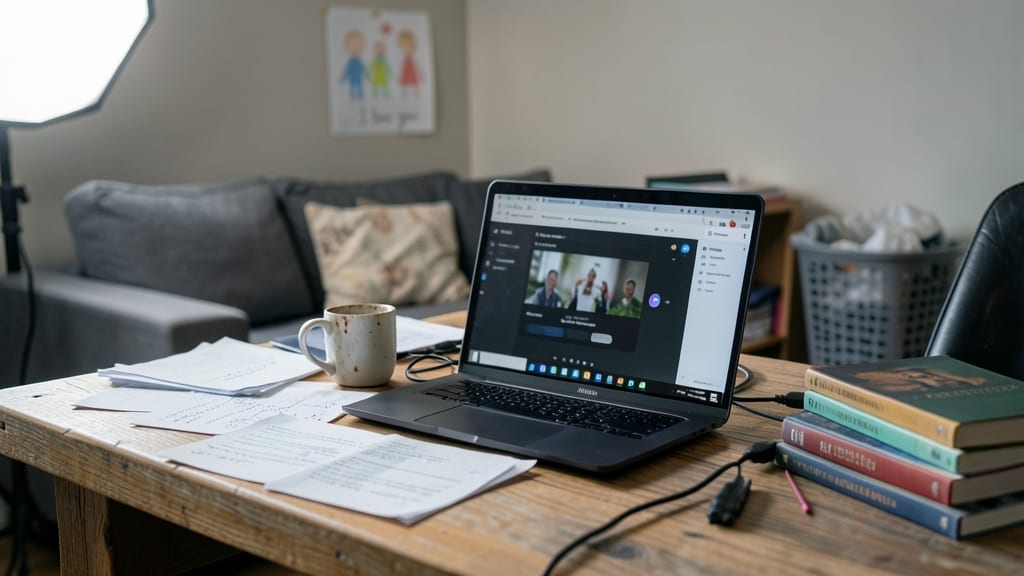
Tired of your messy home office making video calls feel unprofessional? Microsoft Teams’ background blur feature lets you keep your surroundings private without needing a virtual background—no setup required.
Simply enable it during a call by clicking the three-dot menu in the video preview, then selecting Background blur. The feature uses AI to softly obscure distractions while keeping you sharp and clear. Works seamlessly with webcams up to 1080p, ensuring smooth performance even on mid-range devices.
Perfect for hybrid workers, freelancers, or anyone who wants to avoid the hassle of setting up a custom background. Your privacy stays intact, and your focus stays on the conversation. ✨
Quick Reactions with Emoji Shortcuts

Tired of clicking through emoji menus to react to messages in fast-paced group chats? Microsoft Teams’ emoji shortcuts let you reply instantly with just a few keystrokes—no mouse required.
Simply type :thumbsup:, :clap:, or :heart: (plus 100+ others) in any chat, and Teams auto-converts them into reactions. Pro tip: Combine shortcuts like :eyes: (👀) for "I’m watching this" or :rocket: (🚀) for "Let’s launch!"—ideal for agile teams or brainstorming sessions where quick feedback keeps momentum.
Perfect for developers in standup chats, customer support agents triaging tickets, or anyone drowning in notifications. Try it next time you’re typing faster than you can click! ⚡
Meeting Transcription and Searchable Notes
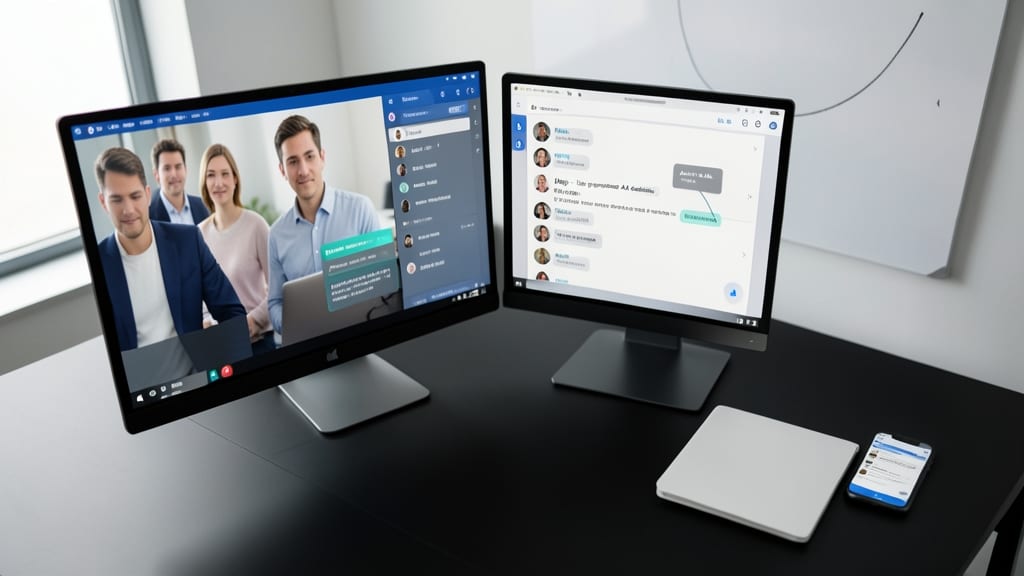
Forget scribbling notes during meetings—Microsoft Teams now auto-generates searchable transcripts with speaker identification, turning every call into an actionable record. This feature uses AI to capture key discussion points, assign them to participants, and even highlight timestamps for quick navigation.
Enable it by joining a meeting, clicking the three-dot menu, and selecting "Transcription." The transcript appears in real-time, and you can later search for specific topics or export notes as a Word doc. Legal teams love this for compliance, while remote workers rely on it to revisit decisions without replaying entire recordings.
Perfect for client calls, brainstorming sessions, or compliance-heavy discussions, this tool ensures no detail slips through the cracks—even if you’re multitasking. ✨
Focus Mode for Deep Work Sessions
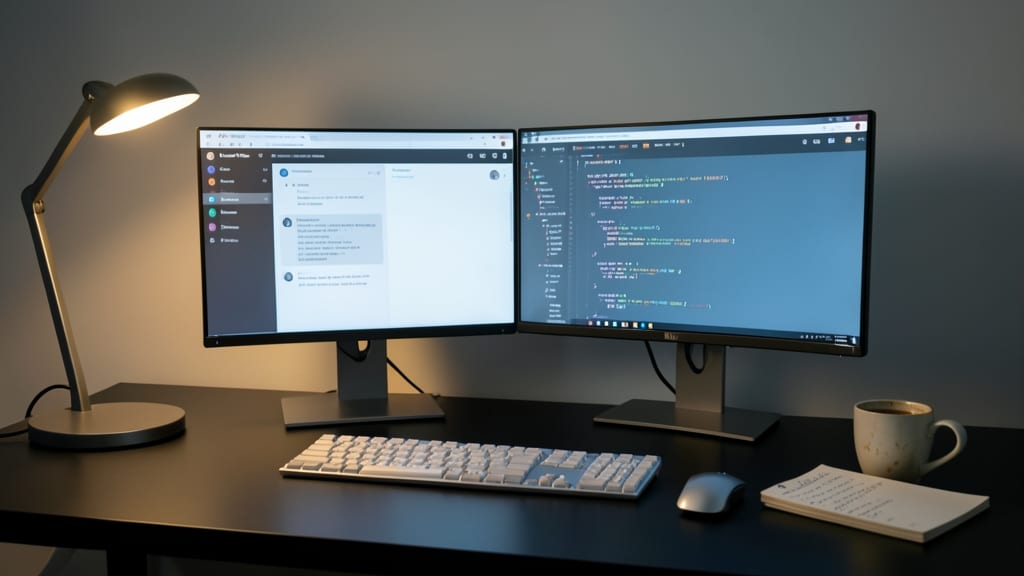
Struggling to focus during those all-important coding sprints or writing sessions? Microsoft Teams’ Focus Mode is your secret weapon—it temporarily mutes notifications and hides non-essential channels so you can dive deep without interruptions.
To activate it, simply click the three-dot menu in any channel, select "Focus mode", and choose which channels to hide. Notifications for those channels will pause until you re-enable them, while critical alerts (like @mentions in active channels) still come through. It’s the perfect balance between staying connected and maintaining concentration.
Developers debugging complex issues or writers crafting their next masterpiece will find this feature a game-changer. Just remember to toggle it back on when collaboration resumes! ✨
Shared Channels for Cross-Team Collaboration
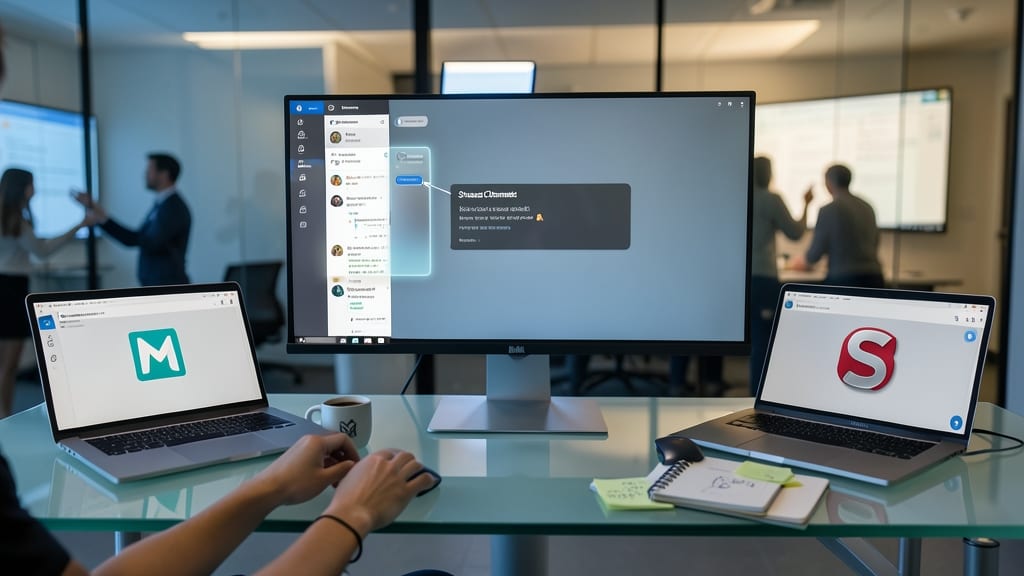
Ever struggled with cross-department projects where Marketing needs Sales input but can’t access their private channels? Shared Channels in Teams solve this by letting multiple teams collaborate in a single space without granting full membership.
To set one up, navigate to Teams > Join or create a team, then select Create a shared channel. You’ll need Microsoft 365 E5 or F3 licenses, but the setup is simple: pick a team to host the channel, name it (e.g., "Product Launch 2024"), and invite other teams to join. Files, tabs, and apps stay synced across teams, while permissions remain separate—no accidental access to sensitive data.
Perfect for agile teams, product launches, or crisis management, where real-time collaboration across departments cuts delays. Try it for your next cross-functional project! ✨
Customizable Meeting Templates
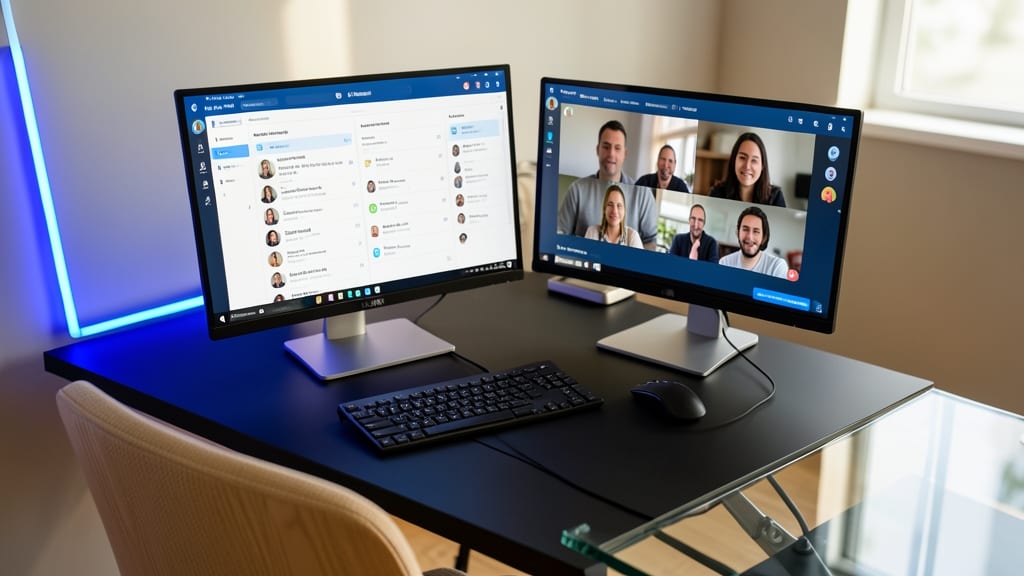
Tired of recreating the same meeting setup every week? Customizable Meeting Templates in Teams lets you save your most-used meeting structures—including agendas, attendees, and even integrated apps—so you can launch professional calls in seconds.
To create a template, start a new meeting, customize your agenda, add participants, and pin essential apps like PowerPoint or Whiteboard. Once set, save it as a template under "Meetings" in the left-hand menu. Need to repeat a client call format? Just select your saved template during scheduling, and Teams auto-fills all the details. This feature works seamlessly with recurring meetings too, ensuring consistency without manual effort.
Perfect for managers running weekly standups, educators hosting virtual classes, or sales teams preparing client demos—this trick cuts setup time by 70%. ⚡