
Tip & Trick
Microsoft OneNote 2013 remains a powerhouse for digital organization, yet many users overlook its most powerful features. These seven hidden tips and tricks will transform how you capture, organize, and retrieve information—saving you hours each week.
Quick Capture with OneNote Clipper Browser Extension
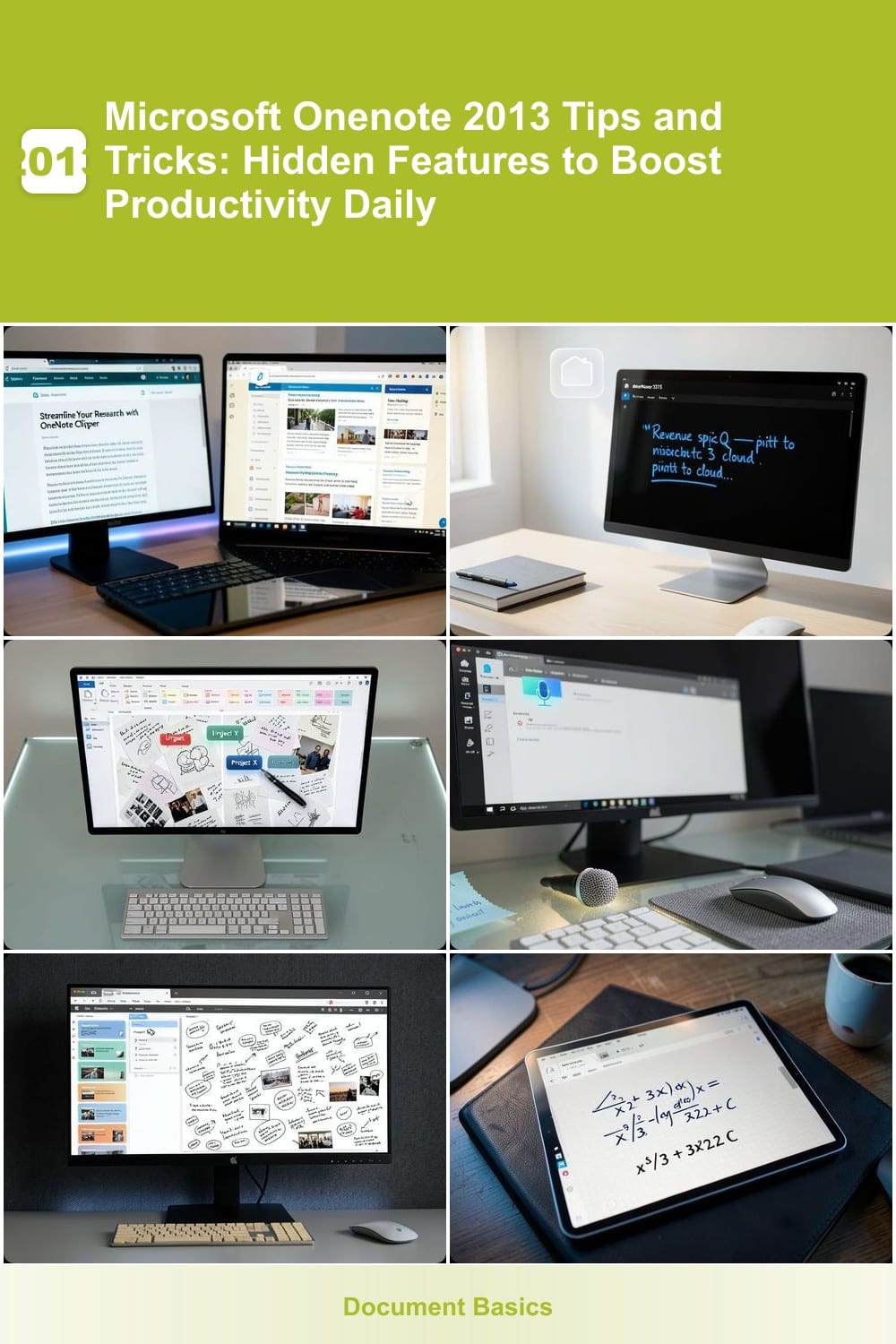
Tired of losing track of research articles or important web pages? The OneNote Clipper browser extension lets you save entire web pages, images, or specific sections directly into OneNote with a single click—no copying, pasting, or bookmarking required.
Install the extension in Chrome, Edge, or Firefox, then click the Clipper icon to capture full articles, screenshots, or even just highlighted text. The content appears instantly in your notebook, complete with formatting and images. You can even clip multiple pages at once and organize them into sections or tags before saving.
Perfect for students compiling research, remote workers archiving meeting notes, or researchers preserving references. Say goodbye to lost tabs and hello to a searchable digital library—all from your browser. ⚡
Handwriting to Text Conversion for Notes
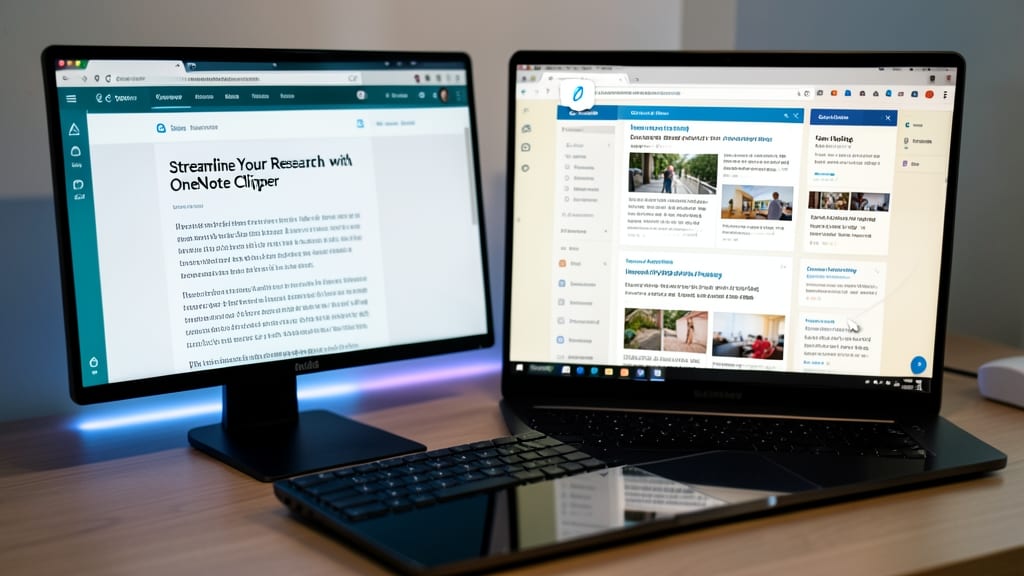
Ever scribbled a brilliant idea in a meeting but struggled to find it later? OneNote 2013’s built-in OCR (Optical Character Recognition) bridges the gap between handwritten notes and digital text—no extra apps or scanning required. Simply write your notes with a pen (or even a mouse), then right-click any handwritten text and select "Copy Text from Picture" to instantly convert it into editable digital text.
The magic happens with OneNote’s Ink Recognition Engine, which handles messy handwriting, abbreviations, and even printed text from images. You can then search, edit, or format the converted text just like any other note—no more typing out every word manually. This feature works seamlessly with touchscreens, styluses, or even a mouse, making it perfect for hybrid note-takers who switch between pen and keyboard.
Ideal for lecture takers, engineers sketching diagrams, or anyone who mixes handwritten notes with digital editing, this trick turns your notebook into a searchable, editable powerhouse. Never lose another idea again—just jot it down and let OneNote handle the rest. 💡
Tagging System for Instant Information Retrieval
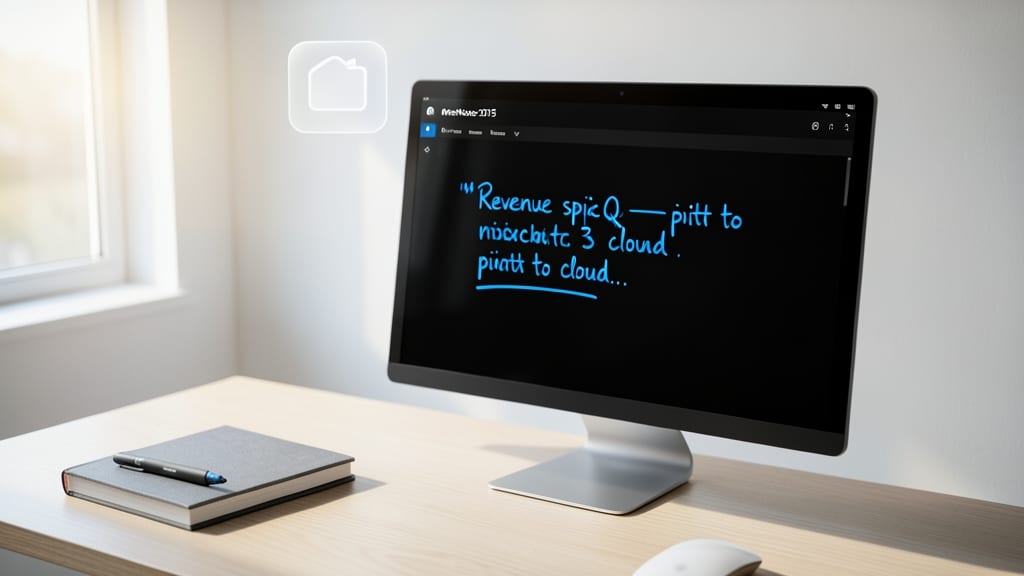
Drowning in digital clutter? OneNote 2013’s tagging system turns chaos into control with just a few clicks. Assign custom labels like "Urgent," "Project X," or "Research" to notes, then filter your entire notebook instantly—no more endless scrolling through pages.
Create up to 256 unique tags per notebook, each with distinct colors for visual scanning. Drag-and-drop tags onto text or images, and use the "Find Tags" search bar to pull up every note marked with a specific label. Pro tip: Combine tags (e.g., "Urgent + Finance") for granular sorting—perfect for tracking deadlines across multiple projects.
This feature is a lifesaver for freelancers managing client work, students juggling classes, or teams collaborating on shared notebooks. Spend less time searching and more time focused on what matters. ✨
Audio and Video Recording Directly in Notes
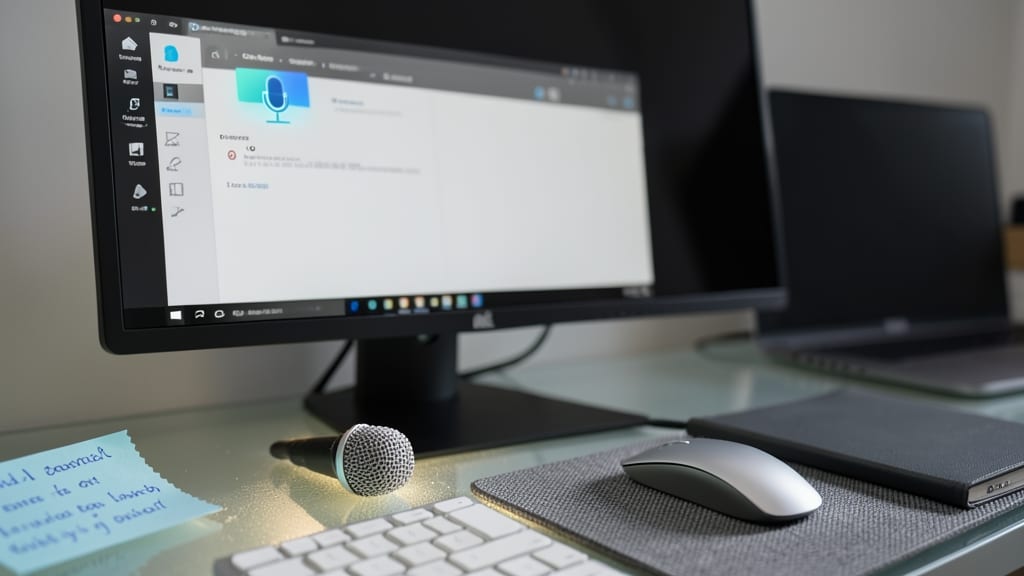
Ever missed a brilliant idea because you couldn’t quickly capture it? OneNote 2013’s built-in audio and video recording tools let you embed voice memos or screen recordings directly into your notebooks—no extra apps needed.
Simply click the microphone icon to record audio (perfect for interviews or lectures) or use the screen capture tool to record your desktop (ideal for tutorials or brainstorming sessions). The recordings play back inline, so you can listen or watch them alongside your notes—no switching tabs or apps required.
This is a game-changer for journalists, developers debugging code, or anyone who needs to document spontaneous thoughts. No more fumbling with external recorders—just hit record and keep your workflow seamless. ✨
Section Tabs for Visual Note Organization
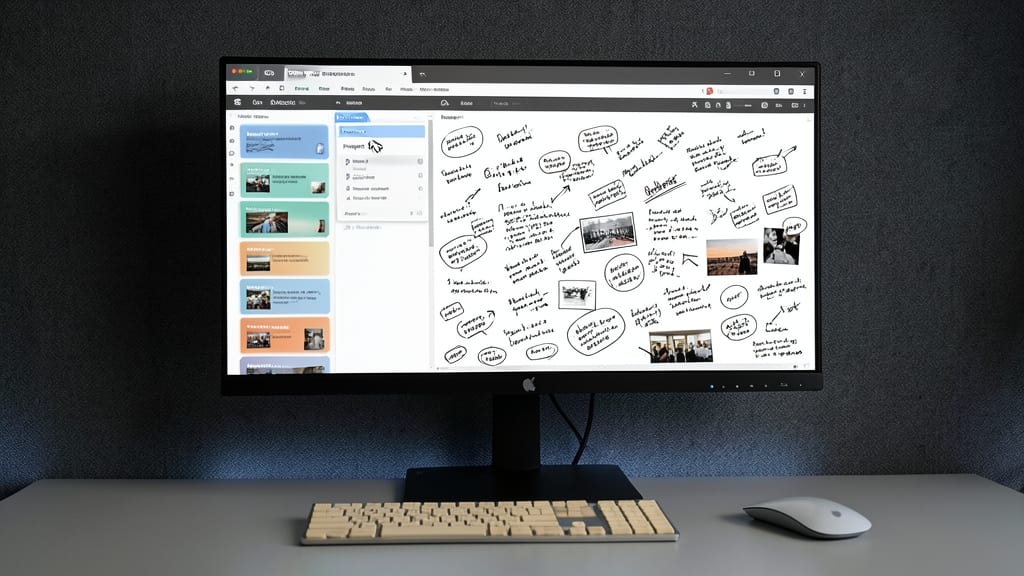
Tired of digging through endless pages to find that one note? OneNote 2013’s section tabs transform your notebook into a visual command center—think of them as digital file folders, but with instant previews and drag-and-drop flexibility.
Create up to 250 sections per notebook (yes, really!) and assign custom icons to each for a glanceable overview. Need to switch between ‘Project X,’ ‘Travel Plans,’ and ‘Meeting Notes’? Just click the tabs—no more scrolling through pages. Pro tip: Use the ‘New Section’ button (Ctrl+Shift+N) to add tabs on the fly during brainstorming sessions.
This feature shines for visual learners or teams working on shared notebooks, where color-coded tabs replace the chaos of nested folders. Perfect for architects sketching blueprints alongside client notes, or educators tracking lesson plans and student feedback in one place. ✨
Math Equation Solver with Ink Input

Need to solve complex equations on the fly without firing up a calculator? OneNote 2013’s Ink Math feature turns your notebook into a digital scratchpad—just write equations by hand, and it solves them instantly with LaTeX-quality precision. Whether it’s calculus derivatives or linear algebra, the tool handles everything from basic arithmetic to advanced notation.
Here’s how it works: Draw a fraction, integral, or matrix using your touchscreen or stylus, and OneNote automatically converts it into a digital equation. Need the answer? Right-click the equation and select "Show Results"—no extra software required. The feature even recognizes handwritten variables like x or θ, making it ideal for engineers sketching designs or students reviewing homework.
Perfect for STEAM professionals or students who prefer pen-and-paper workflows but crave digital accuracy. No more switching between apps—just scribble, solve, and move on. ✨
Offline Access and Sync with OneDrive
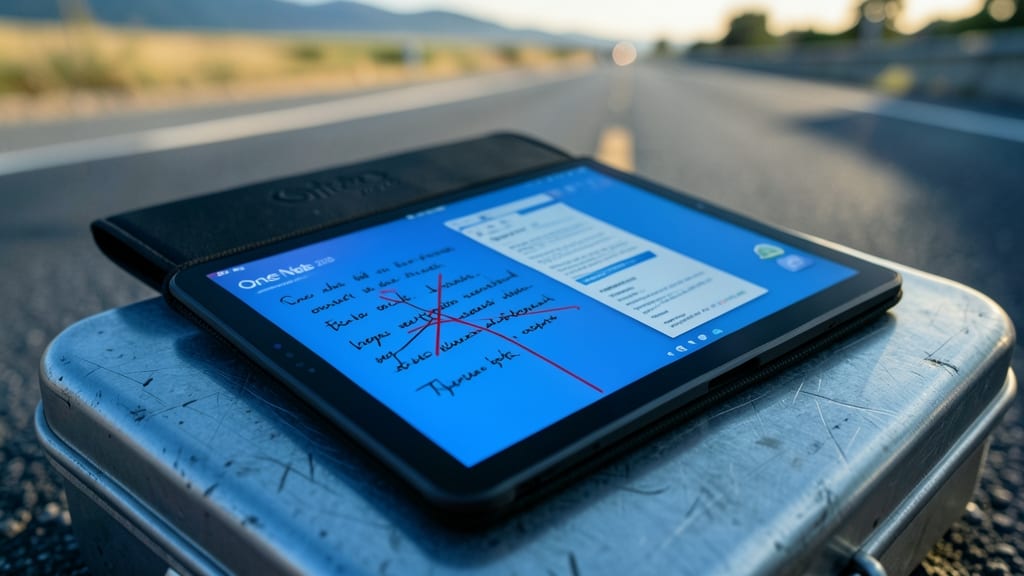
Fieldworkers, road warriors, and anyone who’s ever lost precious notes due to spotty Wi-Fi will love OneNote 2013’s offline-first sync. This feature lets you jot down ideas, sketch diagrams, or edit documents without an internet connection—then automatically syncs everything to your OneDrive the moment you reconnect.
Simply enable File > Info > Sync Status (or press Ctrl+Shift+F12 for quick access) to toggle offline mode. Your notes stay fully functional, and when you return to coverage, changes merge seamlessly—no manual uploads required. The system even handles conflicts by preserving your latest edits, so you never lose progress.
Perfect for travelers, construction crews, or remote researchers who need reliable access. No more waiting for connections or worrying about dropped edits—just pure, uninterrupted productivity. ✨