
Software
Microsoft Edge isn’t just a browser—it’s a productivity powerhouse packed with hidden features. These seven pro-level tricks will transform your browsing experience, from lightning-fast navigation to seamless integrations you never knew existed.
Enable Immersive Reader for Faster Content Absorption
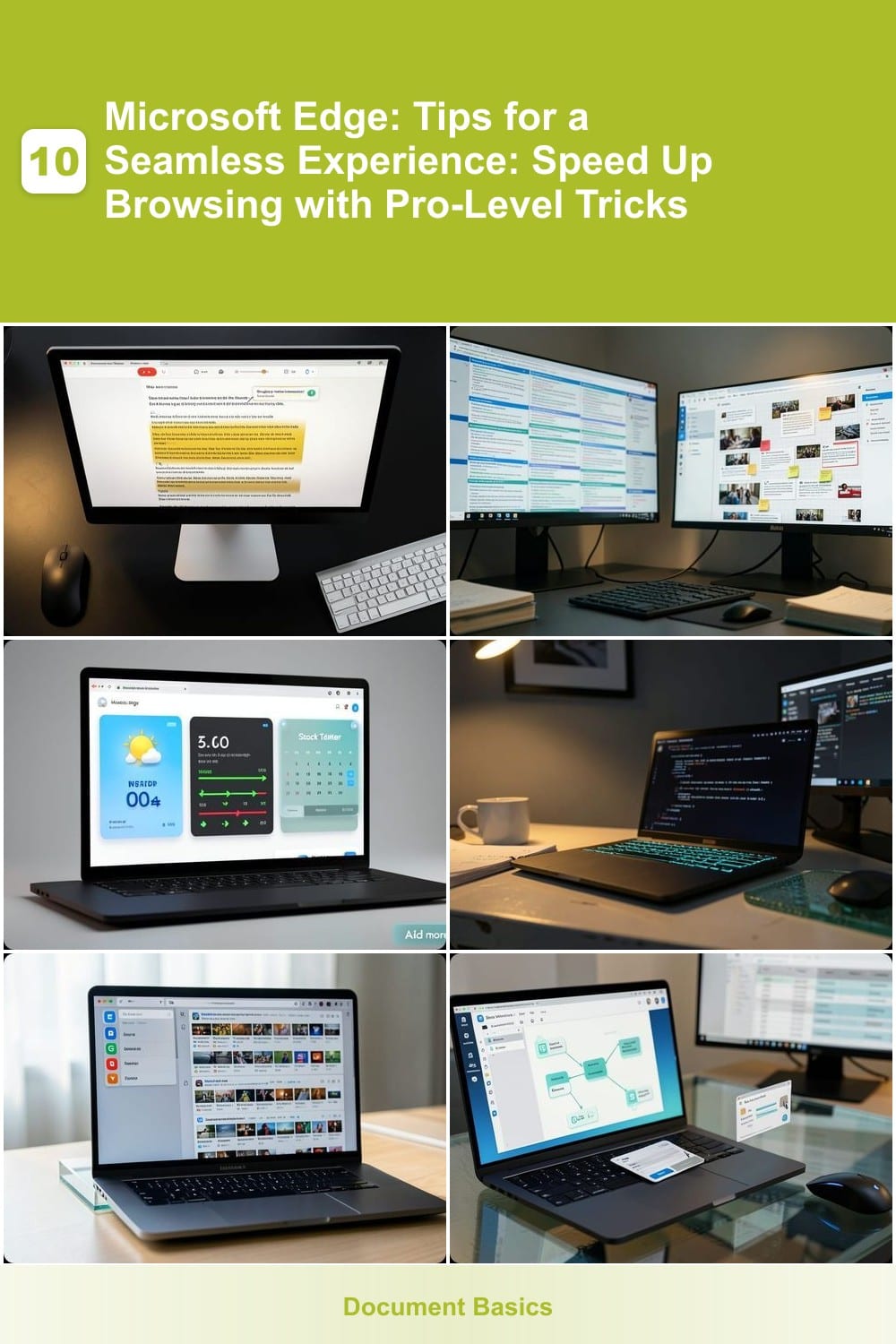
Struggling to retain information from long articles or PDFs? Microsoft Edge’s Immersive Reader transforms passive reading into an active, distraction-free experience with AI-powered tools designed for focus.
This built-in feature highlights text line-by-line, reads aloud with adjustable pacing (from slow to fast), and even translates content into over 100 languages on the fly. The picture dictionary breaks down complex words visually, while dyslexia-friendly fonts like OpenDyslexic reduce eye strain. Best of all, it works directly in Edge—no extensions or extra apps needed.
Perfect for students tackling research papers or professionals digesting dense reports, Immersive Reader turns overwhelming content into manageable chunks. Try it on your next deep-dive read—your brain will thank you. ✨
Use Collections to Organize Research Instantly
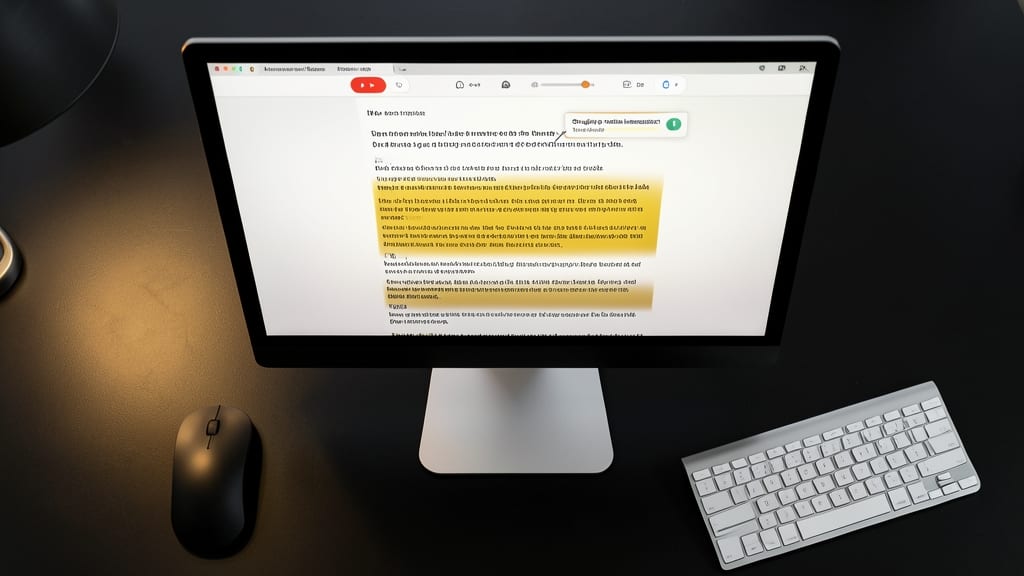
Drowning in tabs while researching? Microsoft Edge Collections turns chaos into clarity by letting you clip text, images, and notes into visual boards—no more lost links or scattered bookmarks.
With one-click saving, you can extract highlights, screenshots, or entire articles into customizable collections that sync across devices via your Microsoft account. The drag-and-drop interface lets you rearrange items, add annotations, or even tag content for quick retrieval. Best of all, it integrates with OneNote for seamless note-taking workflows.
Journalists, students, and remote workers will love how Collections replaces messy folders with an organized, searchable hub. Try it today and reclaim your digital workspace! ✨
Customize Your New Tab Page with Widgets
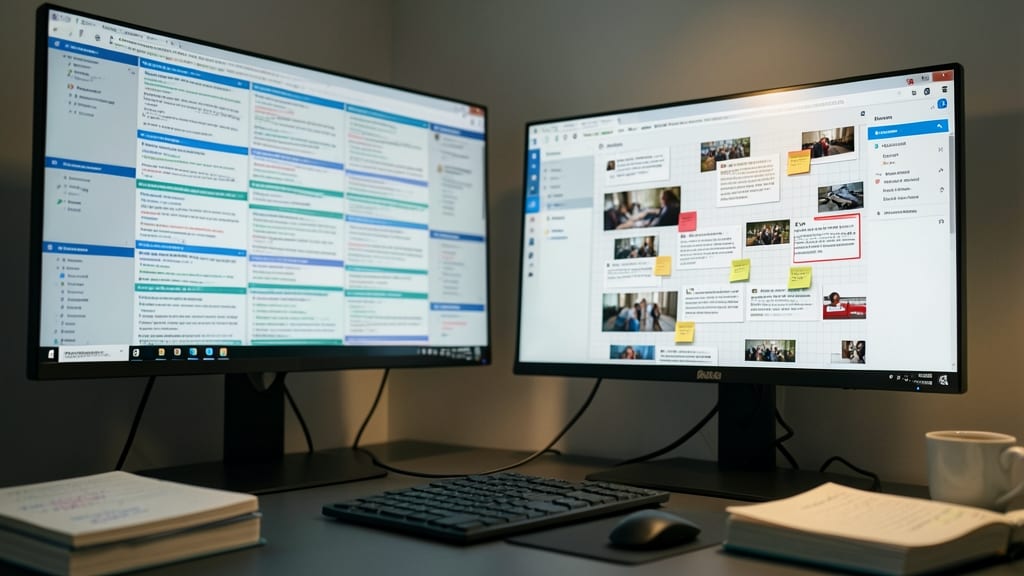
Tired of staring at a blank new tab every time you open Edge? The customizable widgets feature turns that empty space into a personalized dashboard—no extensions required.
Drag and drop widgets like weather updates, stock tickers, or calendar events directly from the Microsoft Store. Need quick access to your to-do list? Add the built-in Tasks widget to keep deadlines visible. The news widget aggregates headlines from your favorite sources, while the traffic widget helps plan your commute—all in one glance.
Perfect for professionals who juggle multiple tasks, this feature eliminates the need to switch between apps. Whether you're checking market trends or planning your day, your new tab becomes a one-stop productivity center. ✨
Enable Dark Mode for Reduced Eye Strain

Late-night coding sessions or early-morning news checks? Dark Mode in Microsoft Edge isn’t just a sleek aesthetic—it’s a game-changer for your eyes and battery. Studies show prolonged screen glare can cause digital eye strain, but Edge’s dark theme cuts blue light exposure by up to 30% while reducing power drain on OLED/LCD displays.
Enabling it is effortless: head to edge://settings/themes and toggle Dark under "Choose your theme." The high-contrast UI (menus, tabs, and toolbars) stays visible even in dim lighting, and it automatically adapts to supported websites—no manual adjustments needed. For extra customization, sync your theme across devices via your Microsoft account.
Perfect for night owls, developers, or anyone with light sensitivity, Dark Mode turns your browser into a comfortable workspace. Give your eyes a break and future-proof your device’s battery life—all with a single click. ✨
Speed Up Loading with Vertical Tabs

Tired of scrolling through endless horizontal tabs that turn your screen into a chaotic mess? Microsoft Edge’s vertical tabs feature transforms your workflow by stacking tabs neatly in a sidebar—freeing up precious screen real estate while keeping everything just a click away.
Enable it in Settings > Appearance (toggle "Show tabs in a sidebar"), and watch your workspace transform. You can pin tabs for quick access, search through hundreds instantly, and even drag-and-drop tabs between windows. The minimalist design ensures no distractions, while the search bar lets you jump to any tab in milliseconds.
Perfect for developers juggling APIs, designers switching between mockups, or anyone drowning in research—this feature turns tab overload into a streamlined, stress-free experience. ✨
Automate Repetitive Tasks with Edge Workflows
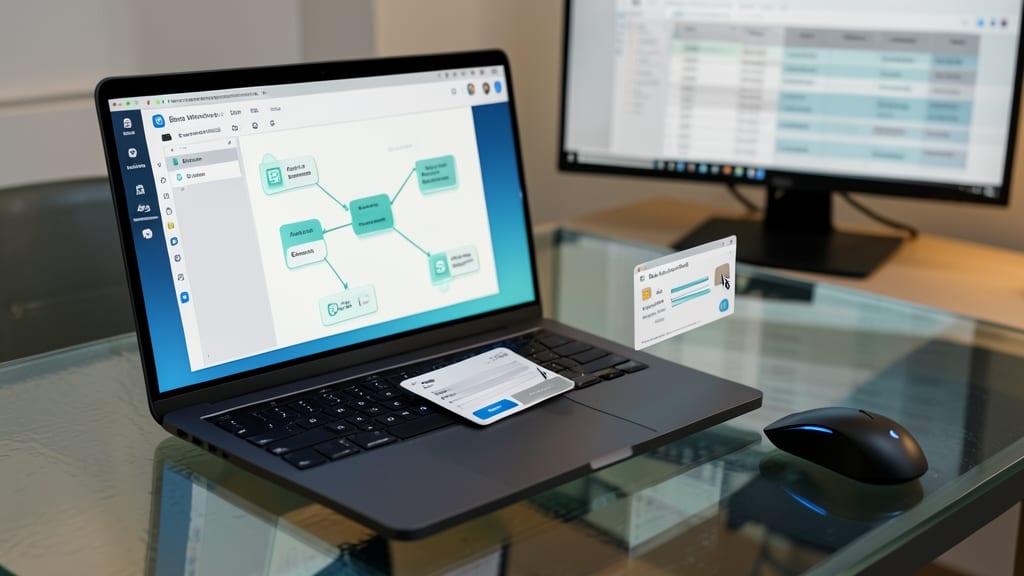
Tired of manually filling the same forms or extracting data from websites? Edge Workflows lets you automate repetitive tasks with zero coding—just drag-and-drop actions into a visual flowchart.
This extension turns your browser into a task automation engine. Use it to auto-fill forms, extract structured data (like tables or lists), or even send HTTP requests with customizable delays. The pre-built templates cover common tasks, while the JavaScript editor lets you tweak logic for advanced use cases.
Perfect for developers debugging APIs, marketers analyzing reports, or anyone drowning in manual data entry. Try it and reclaim hours of your week! 💻
Sync Settings Across Devices Instantly
Tired of switching devices only to find your bookmarks and extensions missing? Microsoft Edge’s cross-device sync ensures your browsing experience stays intact—whether you’re on your phone, tablet, or desktop. With just a few clicks, you can access your saved passwords, open tabs, and even reading lists across all your devices, making transitions effortless.
This feature syncs bookmarks, extensions, history, and even open tabs in real-time using Microsoft account integration. No more logging into different devices or manually transferring settings. The sync is secure, encrypted, and works seamlessly with Edge’s built-in privacy controls, so your data stays safe while remaining accessible. Plus, it’s zero-configuration—just enable it in settings, and you’re ready to go.
Perfect for remote workers, students, or anyone juggling multiple devices, this trick ensures you’re always set up to browse efficiently, no matter where you are. 💻