
Tip & Trick
Remote work offers flexibility but exposes your data to new risks. These 10 security best practices protect your workspace without requiring advanced tech skills—simple, actionable steps to keep your digital life secure.
Enable Multi-Factor Authentication Everywhere
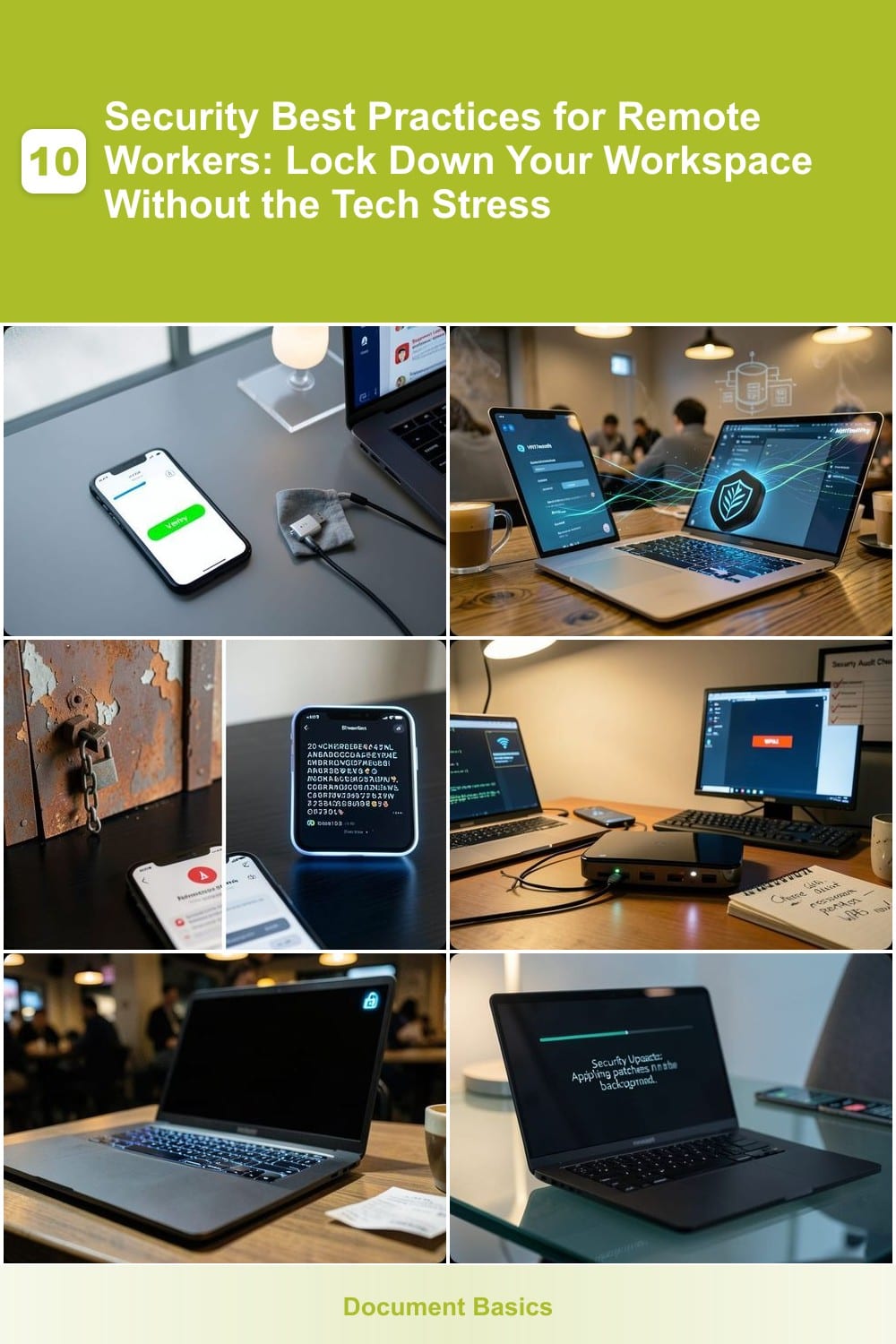
Credential theft is the #1 way hackers break into accounts—multi-factor authentication (MFA) stops them cold. With just a few taps, you add a second layer of security that thwarts even the most sophisticated phishing attacks targeting passwords alone.
Most services now support zero-config MFA via authenticator apps like Google Authenticator or Authy, which generate time-based codes. For maximum convenience, hardware keys (like YubiKey) offer phishing-resistant protection—plug them in, and no code is needed. Even better, services like Microsoft and Google now offer FIDO2-compatible MFA that works across all your devices.
This is the one security measure that takes less than 5 minutes to set up but dramatically reduces your risk. Whether it’s your work email, personal banking, or cloud storage, MFA is the simplest way to lock down every account. ✨
Use a Dedicated Work VPN Always
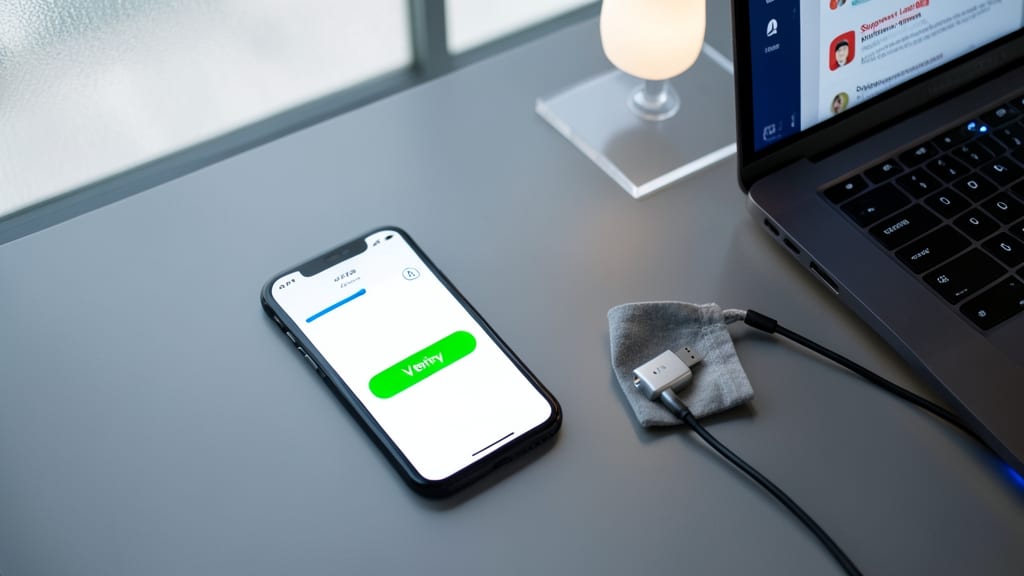
Public Wi-Fi in coffee shops and airports is convenient—but also a hacker’s playground. A dedicated work VPN acts as an invisible shield, encrypting all traffic between your device and company servers, so even if someone intercepts your connection, they’ll only see gibberish.
Most corporate VPNs use AES-256 encryption (the same standard banks use) and integrate seamlessly with your work laptop. They automatically route traffic through secure servers, blocking snoops from stealing login credentials or monitoring your activity. Many also include kill switches—if the VPN drops, your connection shuts down instantly to prevent leaks.
This is non-negotiable for remote workers, especially those handling sensitive data. Even if your company provides one, never disable it—not for "faster speeds" or "quick browsing." It’s your first line of defense against cyber threats lurking on public networks. ⚡
Implement a Password Manager Immediately
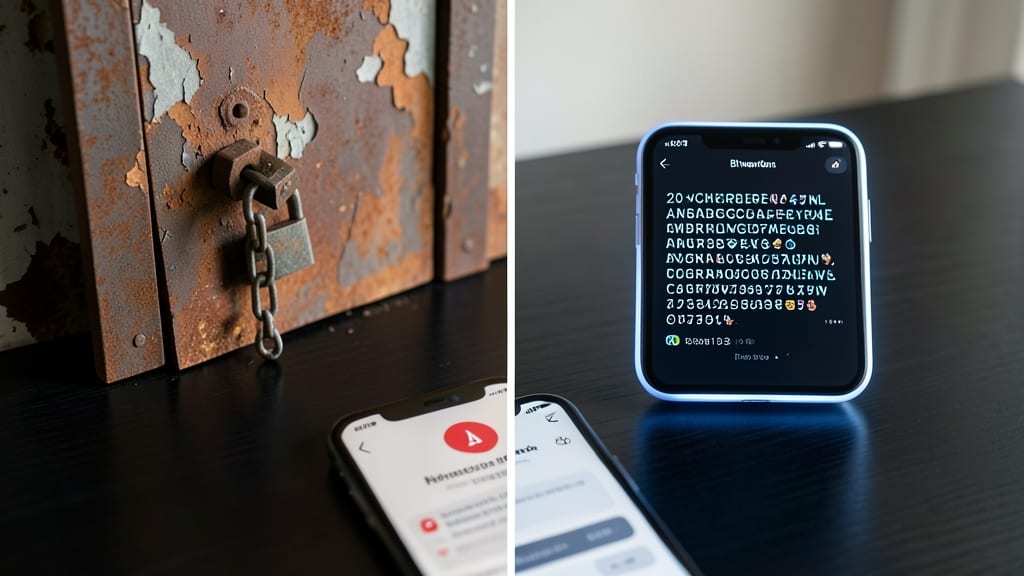
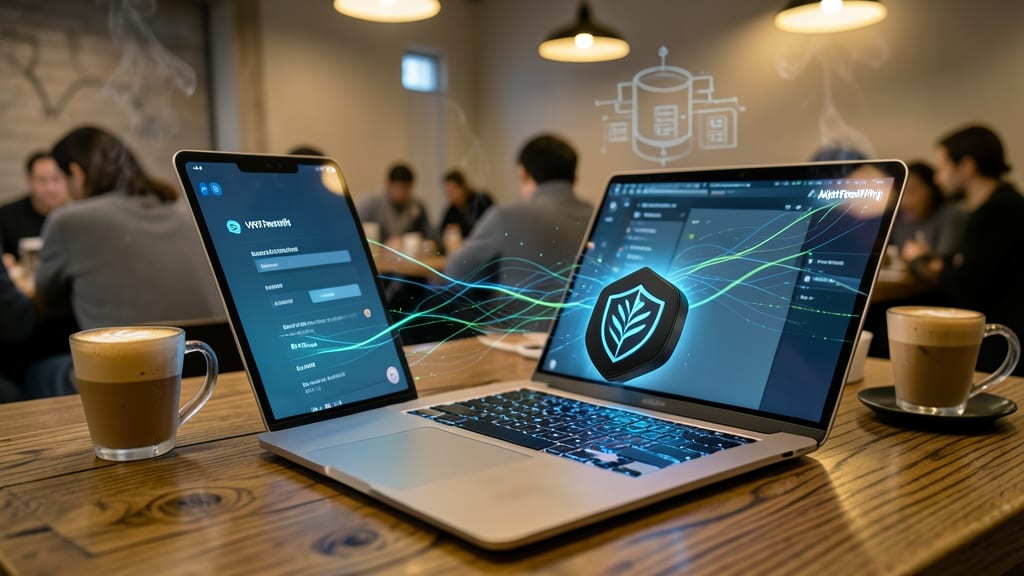
Reused passwords like "Password123" or "qwerty" are the digital equivalent of leaving your front door unlocked. A password manager eliminates this risk by generating and storing unique, 20-character passwords for every account—so one breach doesn’t compromise everything.
Tools like Bitwarden (free and open-source) or 1Password (cross-platform with family sharing) sync across devices and auto-fill logins. They also monitor the dark web for leaked credentials, alerting you to change passwords before hackers exploit them. With biometric unlock (fingerprint or Face ID) and zero-knowledge architecture, your data stays secure even if the service is breached.
This is the single most impactful step for remote workers juggling personal and work accounts. Whether you’re accessing company portals or online banking, a password manager ensures you never reuse weak credentials again—without memorizing a single complex password. 💻
Secure Your Home Network Properly
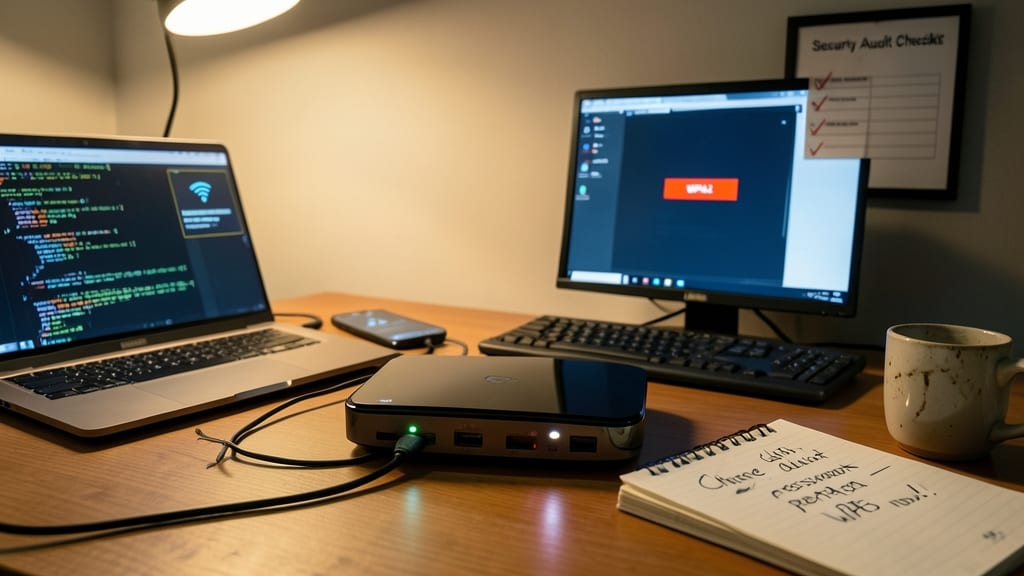
Your home Wi-Fi is the gateway to your work files, banking, and personal data—yet most routers ship with default passwords and weak encryption that hackers exploit in minutes. A quick security audit of your router settings can block 80% of remote breaches before they start.
Start by enabling WPA3 encryption (not the outdated WPA2) in your router’s admin panel—this makes it nearly impossible for attackers to crack your password. Next, change the default admin password (written on a sticky note under your router?) and disable WPS (a notorious security flaw). Finally, set up a guest network for visitors to isolate their devices from your work traffic. Most routers let you do this in under 5 minutes.
This is especially critical if you’ve ever connected to your network from a coffee shop or used it for work—one weak link can compromise everything. Remote workers, freelancers, and even casual users should treat their home network like a corporate firewall. 💪
Enable Full-Disk Encryption On Devices
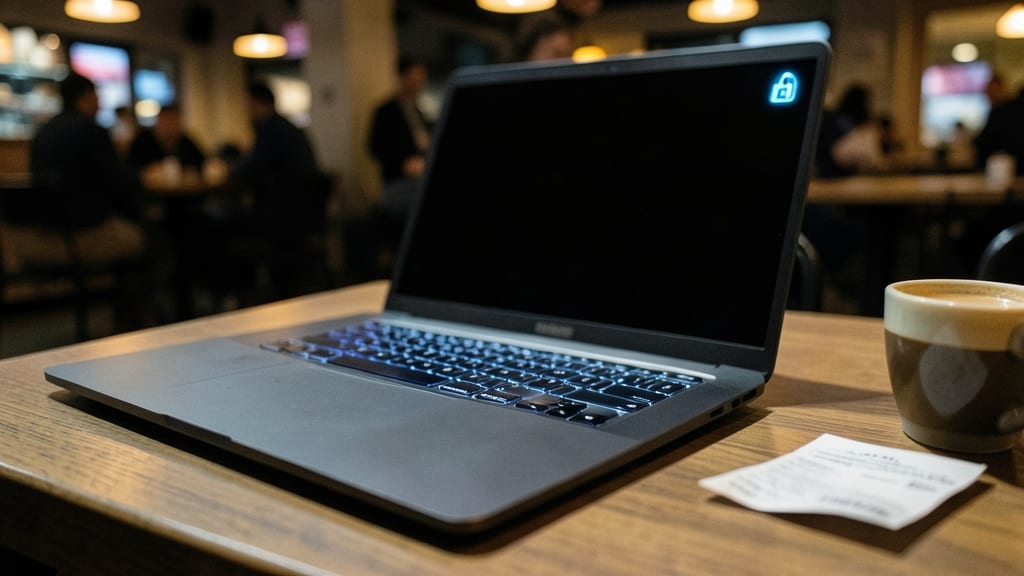
Losing a laptop isn’t just a productivity nightmare—it’s often a data breach waiting to happen. Full-disk encryption turns your device into a digital safe, automatically scrambling all files so even if someone steals it, they can’t access a single email, document, or password without your passphrase.
Windows BitLocker and macOS FileVault handle this automatically with no extra software. BitLocker works on Windows 10/11 Pro/Enterprise (or free via TPM 2.0 chips), while FileVault requires macOS Sierra or later. Both use AES-256 encryption—the same military-grade standard used by banks—and activate in seconds during setup. The only catch? You’ll need to remember your recovery key (stored securely online or printed).
This is the ultimate insurance policy for remote workers, contractors, or anyone carrying sensitive data. Whether you’re at a café or traveling, full-disk encryption ensures your files stay locked down—no extra effort, just ironclad protection. 💻
Regularly Update All Software Automatically
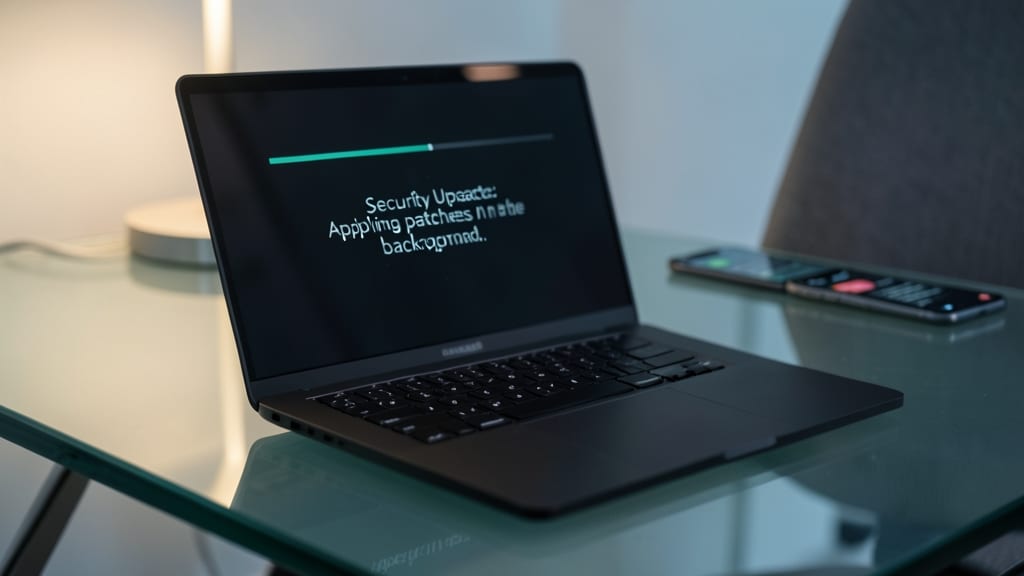
Forget manually checking for updates—most modern devices now handle security patches automatically in the background, often without you even noticing. This silent defense mechanism closes critical vulnerabilities before hackers can weaponize them, making it one of the simplest yet most effective security habits.
Windows Automatic Updates (enabled by default) patches systems within hours of release, while macOS Software Update delivers security fixes alongside feature releases. Mobile users benefit from Google Play Protect (Android) and Apple’s iOS Security Updates, both designed to install silently. Even third-party apps like browsers (Chrome, Firefox) and productivity tools (Slack, Zoom) offer auto-update settings—just enable them once and let the system handle the rest.
This is especially critical for remote workers, as outdated software is a top target for cybercriminals. Perfect for busy professionals who can’t monitor updates daily, this zero-effort practice delivers maximum protection. ⚡
Create Separate User Accounts For Work
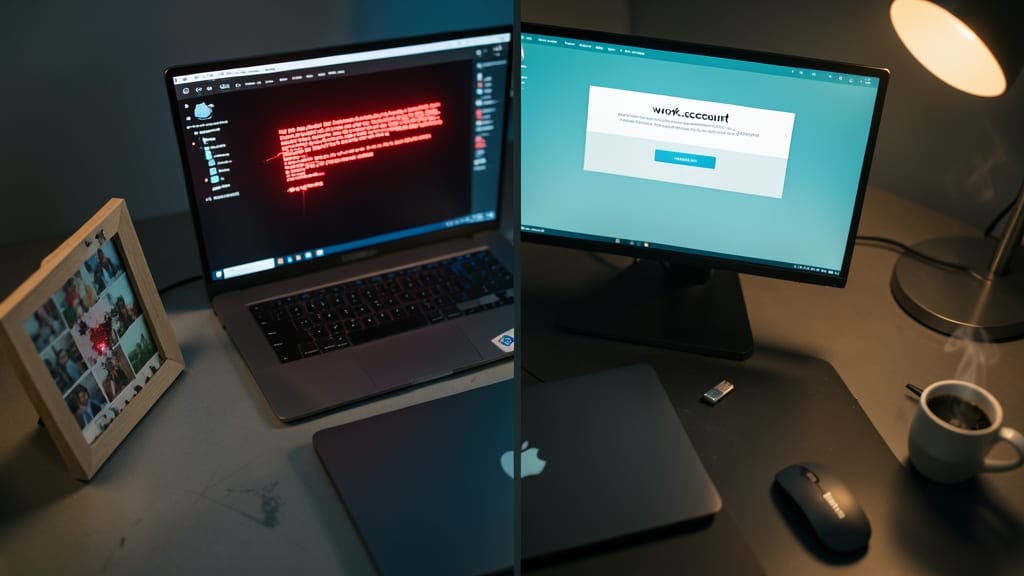
Imagine opening a file at work only to realize malware just infected your personal photos—separate user accounts prevent this nightmare scenario with simple setup.
Windows and macOS make this easy: create a work account with restricted admin rights and a personal account for everything else. Malware in your work files can’t jump to your family photos, and company IT can’t accidentally delete your vacation pictures. Both systems let you switch accounts instantly with a click, keeping your workflow smooth.
This is especially critical for freelancers, contractors, or anyone handling sensitive client data. A single misclick becomes far less risky when work and personal files stay completely isolated. ✨
Secure Your Webcam When Not In Use

Your webcam might be the most overlooked security risk in your home office. Hackers can exploit it for surveillance without you ever knowing—unless you take this one simple step.
Most modern webcams (like the Logitech C920 or built-in laptop cameras) include a physical shutter that physically blocks the lens when closed. Alternatively, software tools like OBS Studio or Windows Camera Privacy Settings let you toggle the camera off entirely. For extra protection, combine both methods—close the shutter when not in use and disable it in your OS settings.
This is especially critical for remote workers handling sensitive data, but even casual users should adopt it. A quick 10-second habit prevents unauthorized access to your workspace. 💻
Use Company-Approved Cloud Storage Only
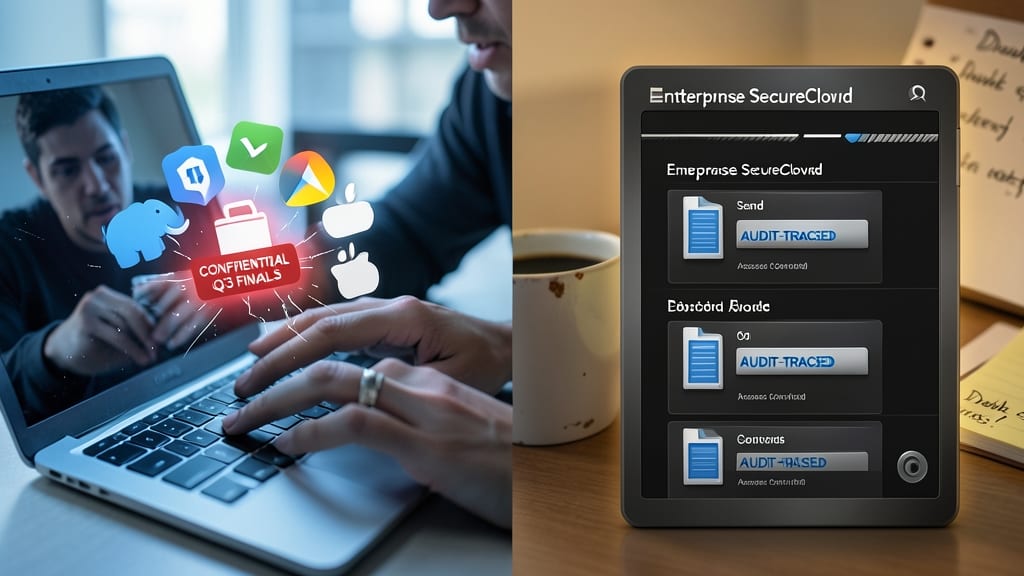
Ever accidentally sent sensitive work files to the wrong cloud service? Using company-approved cloud storage eliminates this risk by keeping all documents within your organization’s audit-traced, access-controlled systems. Unlike consumer apps like Dropbox or Google Drive (which may lack enterprise-grade security), approved platforms enforce role-based permissions, encryption at rest, and compliance with industry standards like SOC 2 or HIPAA.
These systems also integrate seamlessly with your IT team’s monitoring tools, so suspicious activity—like unauthorized downloads—triggers alerts instantly. Plus, they often include automatic versioning and e-discovery tools, so you never lose critical files or face compliance headaches. The best part? Your company’s IT department handles all the security updates and threat protections behind the scenes.
This is a must for anyone handling client data, financial records, or proprietary projects. Stick to the approved platform, and you’ll avoid the legal and reputational fallout of shadow IT breaches. 💻
Train Yourself To Spot Phishing Attempts
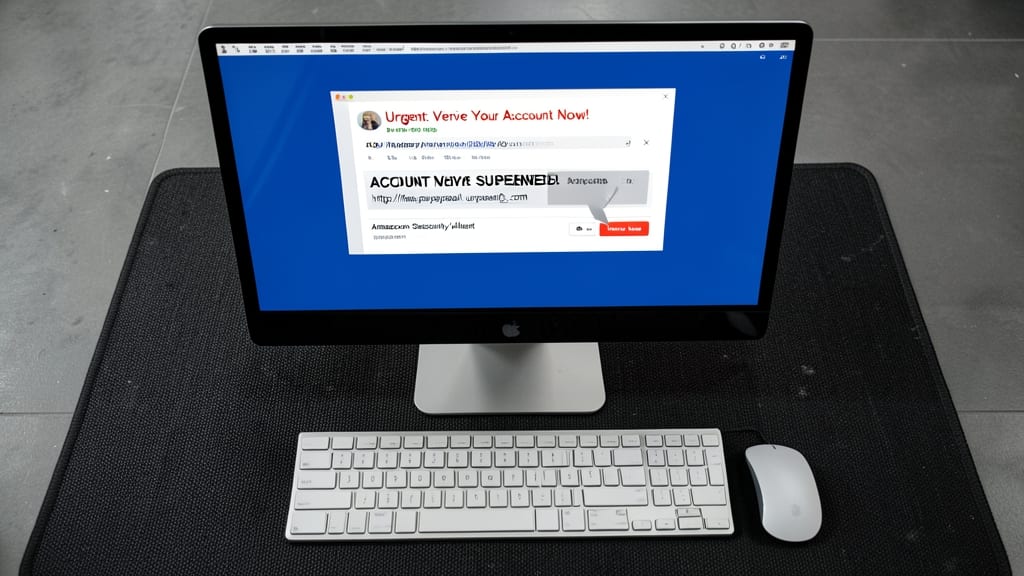
Most cybersecurity tools focus on blocking threats—but 90% of attacks begin with a phishing email that slips past defenses. The key? Training your eyes to spot subtle red flags before you click anything.
Look for mismatched URLs (hover to reveal hidden links), urgent demands (e.g., "Verify your account NOW!"), or generic greetings (like "Dear User"). Fake emails often use poor grammar, suspicious attachments (e.g., "Invoice_2024.zip"), or unusual sender addresses (e.g., "support@amaz0n-security.com"). Even legitimate-looking logos can be stolen images—check the email header for inconsistencies.
This skill is free, universal, and instantly effective—whether you're a remote worker, freelancer, or casual user. Spend two minutes scanning suspicious emails daily, and you’ll stop 99% of phishing attempts before they start. 💡