
Tip & Trick
Struggling to unlock SharePoint’s full potential? These eight beginner-friendly tips will help you streamline workflows, organize documents effortlessly, and collaborate like a pro—without needing advanced technical skills.
Master SharePoint Quick Launch Navigation

Frustrated by wasting minutes (or hours!) scrolling through SharePoint’s default navigation to find the right site or document? The Quick Launch bar is your secret weapon—a customizable left-side menu that puts your most-used locations just one click away.
To get started, edit the bar by clicking the gear icon and selecting "Edit Links". Here, you can reorder existing links, add new sites/libraries, or even create folders to group related items (like "Marketing Assets" or "Project Docs"). Pro tip: Use the "Add a link" feature to include external sites or OneDrive folders—no need to navigate away from SharePoint. For teams, assign default links that appear for everyone, ensuring consistency across the board.
This trick is a game-changer for project managers, HR teams, or anyone juggling multiple SharePoint sites daily. Spend less time hunting for files and more time getting work done—without the frustration. ⚡
Use Document Libraries for Smart File Organization
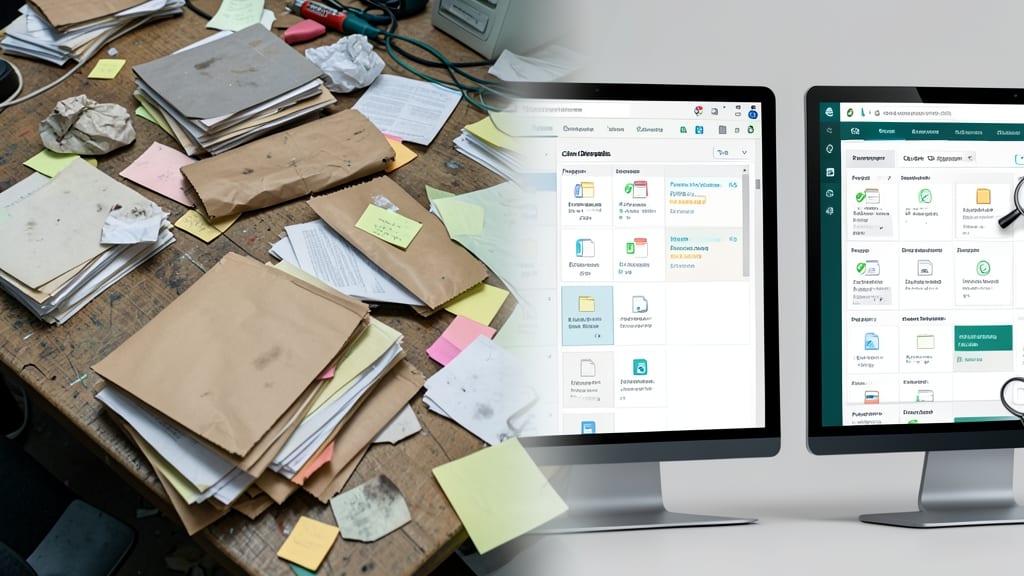
Drowning in a sea of files that feel impossible to track? SharePoint’s document libraries transform chaos into a structured, searchable system—no more digging through folders to find that one critical file.
Start by creating a folder hierarchy that matches your workflow (e.g., “Projects” > “Q3 Campaign” > “Drafts”). Add metadata columns like “Project Lead” or “Deadline” to tag files dynamically, then enable versioning to recover previous drafts with a single click. Combine this with column sorting (e.g., by date modified) to surface the most relevant files instantly.
This setup is perfect for marketing teams, legal departments, or project managers juggling shared resources. With metadata and versioning, you’ll spend less time searching and more time collaborating—without the headache. 💻
Leverage SharePoint Alerts for Real-Time Updates
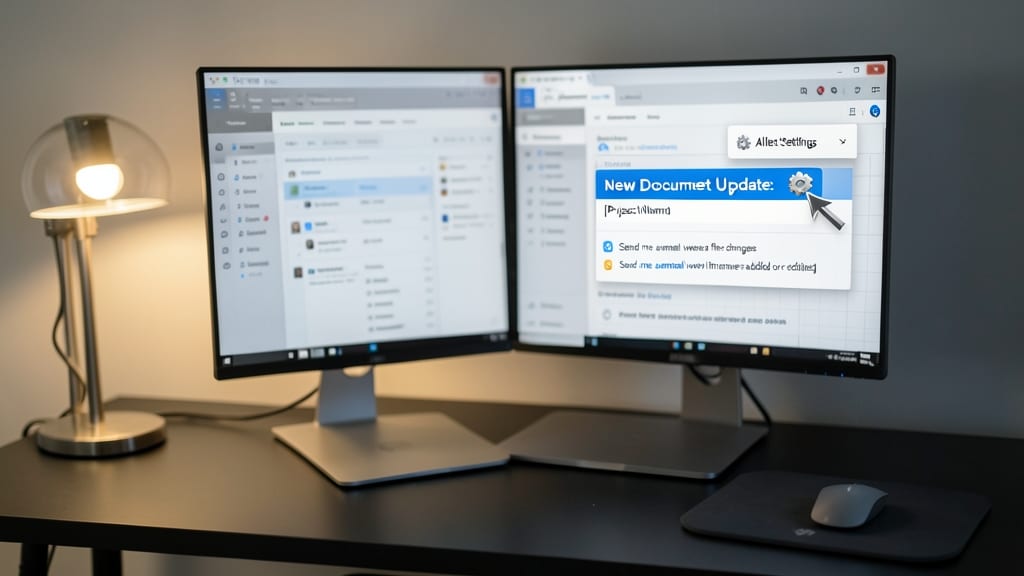
Tired of missing critical updates buried in SharePoint’s endless feeds? Email alerts are your secret weapon—automatically notify you when documents or libraries change, so you never fall behind on what matters.
Setting up alerts takes just minutes: navigate to your library, click the gear icon, select Alert Me, and choose how often you want updates (immediate, daily, or weekly). You can even filter alerts for specific files or folders, ensuring only the most relevant changes hit your inbox. Perfect for tracking contracts, project plans, or client deliverables without manual checks.
This feature is a game-changer for project managers, legal teams, or anyone juggling multiple stakeholders. No more refreshing pages or relying on memory—just real-time updates delivered straight to your email. ✨
Create and Share Calendars with Ease
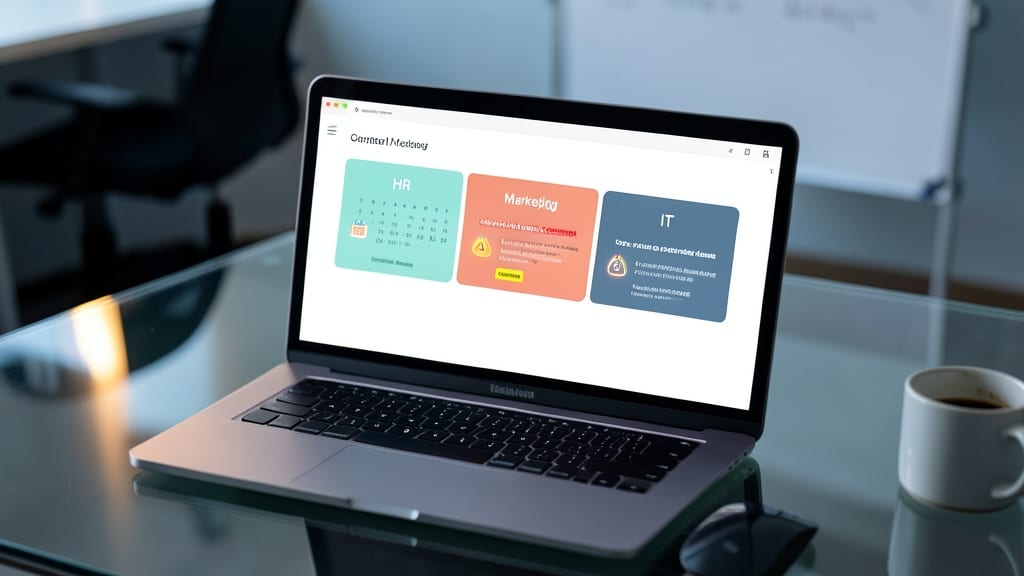
Say goodbye to scheduling chaos—SharePoint’s calendar overlay feature lets you merge multiple team calendars into a single view, so you can spot conflicts and deadlines at a glance. This is a game-changer for cross-department projects where HR, marketing, and IT all need to align timelines.
Create a team calendar in seconds, then overlay individual calendars to visualize overlapping meetings or deadlines in color-coded blocks. Share the view externally with stakeholders (even non-SharePoint users) via a simple link, ensuring everyone stays on the same page. The mobile-friendly interface means you can check schedules from anywhere—no more missed deadlines or double-booked rooms.
Perfect for project managers, HR teams, or anyone coordinating across departments, this feature turns SharePoint into your centralized command center for time-sensitive tasks. ✨
Automate Workflows with SharePoint Designer
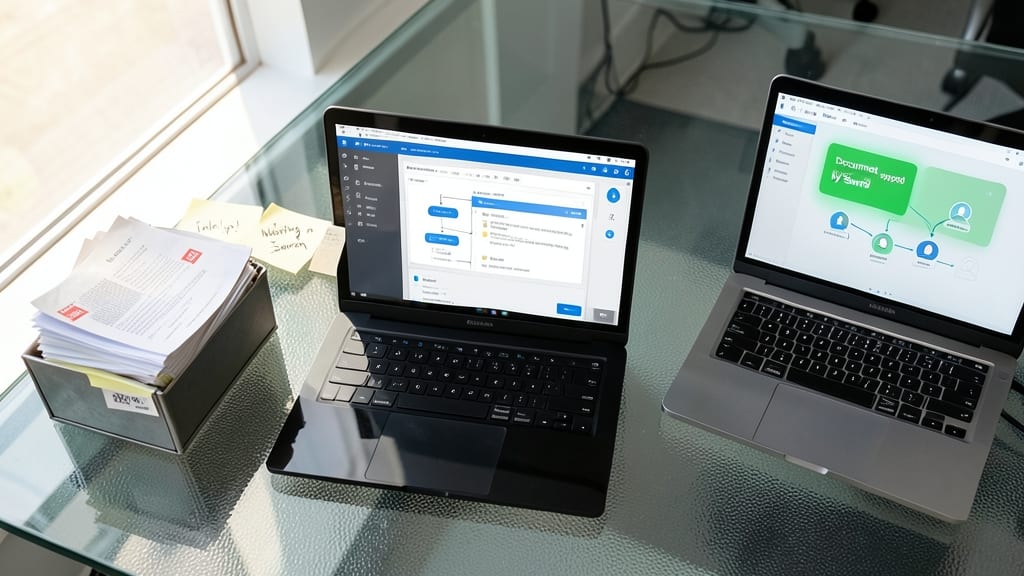
Tired of manually chasing approvals or chasing down team members for feedback? SharePoint Designer lets you create no-code workflows that handle repetitive tasks automatically—like sending notifications when documents are ready for review or routing requests to the right person.
With drag-and-drop actions, you can build workflows to approve contracts, collect sign-offs, or even trigger follow-up emails when a task is completed. The 2013 and 2016 versions (still widely used) support everything from simple alerts to complex multi-step approval chains—all without writing a single line of code. Best of all, it integrates seamlessly with SharePoint lists and libraries, so your automation stays in sync with your existing files.
Perfect for project managers, HR teams, or small business owners who need to streamline processes but lack IT support. Start with a basic approval workflow and watch how much time you save! ✨
Optimize Search with Keywords and Metadata
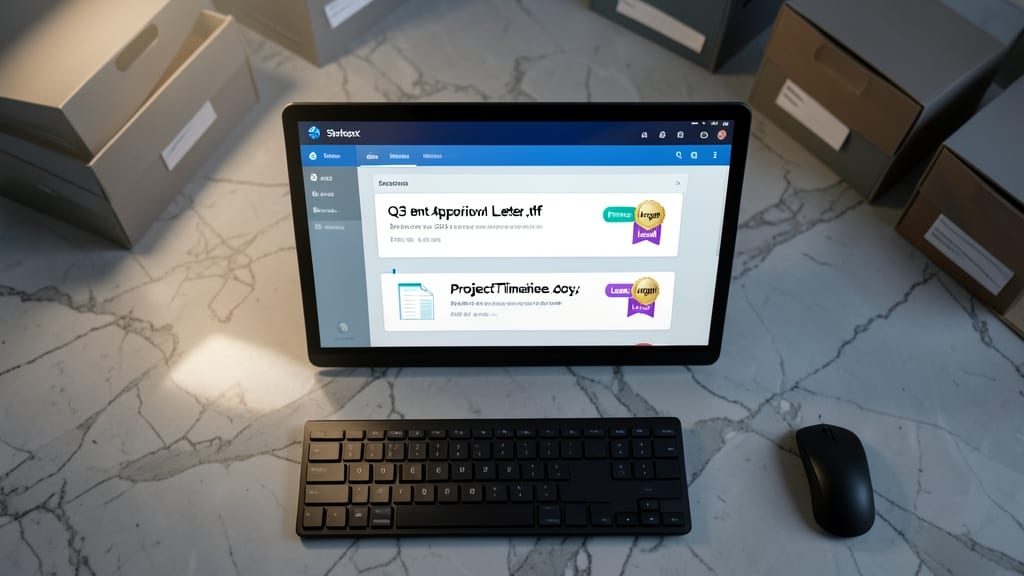
Tired of digging through endless folders to find that one document? SharePoint’s metadata tagging system turns your file chaos into a search-friendly library. By adding keywords like “Q3 Budget” or “Client Approval” to documents, you ensure they pop up instantly in search results—no more guesswork.
Start by defining custom metadata columns (e.g., “Project Name,” “Owner,” or “Priority Level”) in your document library. Then, tag files consistently—this creates a searchable database where you can filter by multiple criteria at once. For example, search for “Project=Marketing AND Owner=Sarah” to pull up exactly what you need in seconds.
This tip is a game-changer for marketing teams, HR departments, or any group juggling shared files. With metadata, even your most disorganized colleagues can find what they need—without asking you to “check your email.” ✨
Collaborate with SharePoint Groups and Permissions

Tired of guessing who can access your team’s most sensitive files? SharePoint’s group permissions let you assign access levels—like View Only, Edit, or Full Control—to entire teams with just a few clicks, keeping your data secure while boosting collaboration.
Start by creating a custom group (e.g., "Marketing Team" or "Project Leads") in the Site Permissions panel. Then, assign roles like “Contribute” for editors or “Restricted Read” for external partners. SharePoint even lets you inherit permissions from parent sites, so updates cascade automatically—no manual checks needed.
This is a game-changer for project managers or HR teams handling confidential documents. With granular control, you’ll cut down on accidental leaks while keeping workflows smooth. ✨
Use OneDrive Sync for Offline Access

Ever hit a dead end because you needed to edit a SharePoint file but had no internet? OneDrive sync solves that by mirroring your SharePoint files locally—so you can work offline and sync changes instantly when back online.
Simply right-click a SharePoint file or folder, select Sync to OneDrive, and let it handle the rest. The files stay in sync with SharePoint automatically, and you get 5GB free cloud storage to back them up. Need to edit a proposal on a flight or review docs in a café? No problem—just open the file from your OneDrive folder.
This trick is a game-changer for remote workers, field teams, or anyone juggling multiple devices. Your files stay up-to-date without manual uploads, and you never miss a beat. ✨