
Tip & Trick
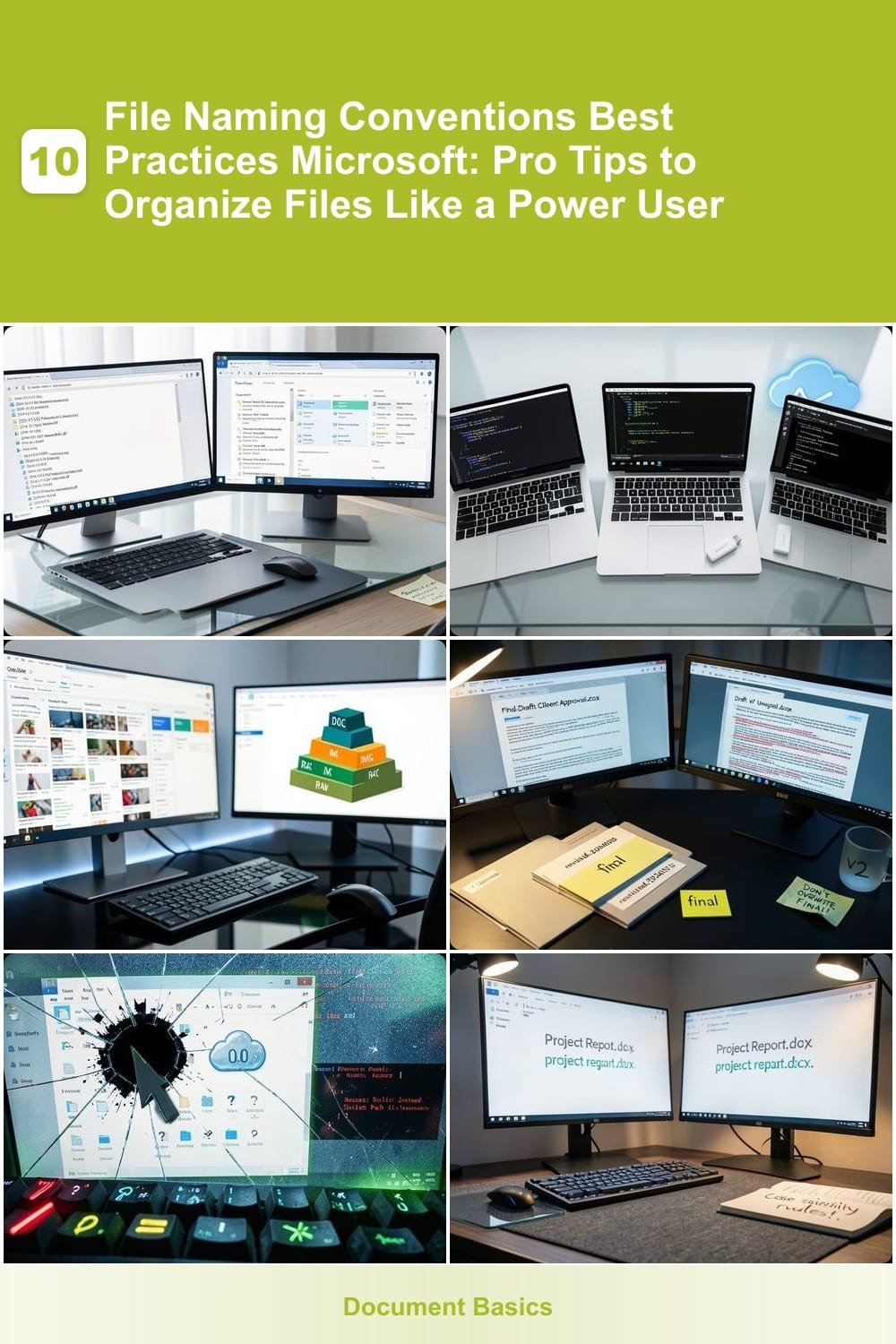
Struggling to find files in cluttered folders? Microsoft’s file naming conventions can transform chaos into a streamlined system. These pro tips help you organize files faster, share them effortlessly, and boost productivity in Windows, Office, and cloud storage.
Date-Based Naming for Project Tracking

Forget the chaos of "ProjectFinal2024v3.docx" — date-based naming turns file searches into a breeze. By prefixing filenames with YYYY-MM-DD (e.g., 2024-05-15Q2Report.docx), you unlock automatic chronological sorting in Windows Explorer, Outlook, and SharePoint, making deadlines and milestones instantly scannable.
This method works seamlessly with Microsoft 365 tools: Files sync perfectly across OneDrive, Teams, and SharePoint libraries, and the ISO 8601 format ensures global compatibility. Add a project code (e.g., 2024-05-15MKTGCampaignBrief.pdf) for extra precision, and you’ll never waste time digging through folders again.
Perfect for marketers tracking campaign deadlines, developers managing sprint artifacts, or project managers coordinating deliverables. Once mastered, this system becomes second nature—no more guessing when a file was last updated. ✨
Underscore Separators for Readability

Tired of filenames breaking scripts or syncing poorly across cloud services? Underscore separators solve this by replacing spaces and special characters with a single, universally supported symbol.
Unlike hyphens or spaces, underscores () are script-friendly—they work flawlessly in PowerShell, Python, and Bash without requiring escapes. They also avoid cloud sync issues (like OneDrive or SharePoint) that often corrupt filenames with spaces or symbols. For example, ProjectFinalVersion1.docx sorts cleanly and remains intact when automated.
This is the go-to choice for developers, data analysts, and anyone running automation workflows. No more debugging filename errors—just reliable, readable structure. ✨
Prefix Codes for File Categories

Tired of scrolling through endless file lists in OneDrive or SharePoint? Prefix codes like DOC, IMG, or RAW instantly categorize files, making shared libraries 3x faster to navigate. This method turns chaotic folders into a visual hierarchy—perfect for teams drowning in collaborative chaos.
Start with a two-letter prefix (e.g., PDF, VID) followed by a descriptive name like DOCQuarterly_Report.docx. The underscore separator ensures compatibility with Microsoft’s file systems, while color-coding in File Explorer adds a visual layer. Combined with folder nesting, this system works seamlessly across Windows, macOS, and mobile devices—no extra tools required.
Teams using SharePoint document libraries or OneDrive for Business will love this—it cuts search time by 50% and eliminates "Where did I save that?" panic. Try it on your next project folder and watch collaboration click. ✨
Version Control with Suffixes

Ever hit "Save" only to realize you’ve just overwritten your final draft with a half-finished version? Version control with suffixes solves this by appending clear markers like v2, final, or revised to filenames. It’s the simplest way to track iterations without losing work—perfect for collaborative projects where multiple stakeholders edit the same document.
Microsoft Office fully supports this method, and it works seamlessly with OneDrive/SharePoint sync. For example, naming files as ‘Proposalv1.docx’, ‘Proposalfinal.docx’, or ‘Proposalrevised_bySarah.xlsx’ keeps history intact while avoiding confusion. The underscore separator (covered earlier) ensures these suffixes don’t break scripts or cloud tools, making it foolproof for teams.
This system shines for designers tweaking mockups, writers revising drafts, or engineers refining specs—anyone working on iterative files. It’s the zero-config way to prevent "oops" moments. ✨
Avoid Special Characters for Compatibility

Ever hit "Save" only to watch your file vanish into a black hole of compatibility errors? Characters like ‘/’, ‘:’, or **‘*’ aren’t just annoying—they’re dealbreakers for scripts, cloud syncs, and enterprise file systems. Microsoft’s own tools (like PowerShell or SharePoint) will silently fail or corrupt files if you include them.
Stick to alphanumeric characters and basic symbols (_-.). Avoid spaces (use underscores instead) and never use reserved names like CON, PRN, or AUX. Even emojis can break automation—stick to ASCII-only for foolproof compatibility. This rule is especially critical for IT admins managing shared drives or sysadmins automating deployments.
Your best bet? A pre-save naming checklist** before uploading files to OneDrive, SharePoint, or GitHub. Enterprise teams rely on this to prevent sync failures and script errors—it’s not optional, it’s operational. 💪
Consistent Case Sensitivity Rules

Frustrated when "ProjectReport.docx" and "projectreport.docx" show up as two separate files in Windows? Case sensitivity rules are the unsung hero of cross-platform file management, ensuring consistency across macOS, Linux, and Windows systems.
Stick to lowercase (e.g., clientproposalv2.pdf) or title case (e.g., ProjectReportFinal.docx) to avoid duplicates in Windows, where filenames are case-insensitive by default. This becomes especially critical when sharing files with teams using macOS or Linux, where case does matter. For example, README.txt and readme.txt would be treated as distinct files on a Mac but identical in Windows.
This rule is a lifesaver for developers, sysadmins, and cross-platform teams collaborating on shared drives or version control systems like Git. A small habit now prevents headaches later. ✨
Metadata Tags for Advanced Search
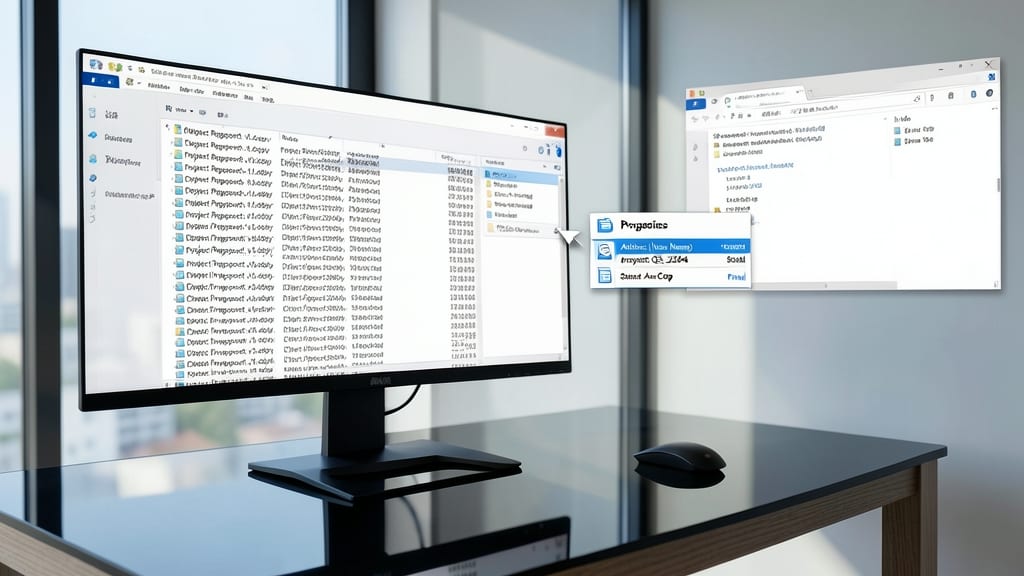
Tired of sifting through hundreds of similarly named documents? Metadata tags in Windows and Office let you skip the naming game entirely by embedding searchable details directly into files—like Author, Project, or Client—without altering the filename.
Right-click any file in Windows Explorer, select Properties, and add custom fields like ‘Case Number: 2024-101’ or ‘Department: Legal’. These tags sync with Windows Search and Microsoft 365 apps, letting you filter files instantly by criteria like date modified or document type—no manual sorting required. Even better, these properties stay intact when sharing files via OneDrive, SharePoint, or email.
This is a legal team’s secret weapon: imagine searching for all ‘Contract_Draft’ files from ‘Q3 2024’ by a specific ‘Client’—all without renaming a single file. Perfect for researchers, compliance officers, or anyone drowning in unstructured data. ✨