
Outlook
Microsoft Outlook remains one of the most powerful email tools—but most users only scratch the surface of its capabilities. These 10 Outlook email tips and tricks for 2023 will transform how you manage inbox overload, automate repetitive tasks, and unlock hidden productivity features you didn’t know existed.
Quick Steps for Instant Email Automation
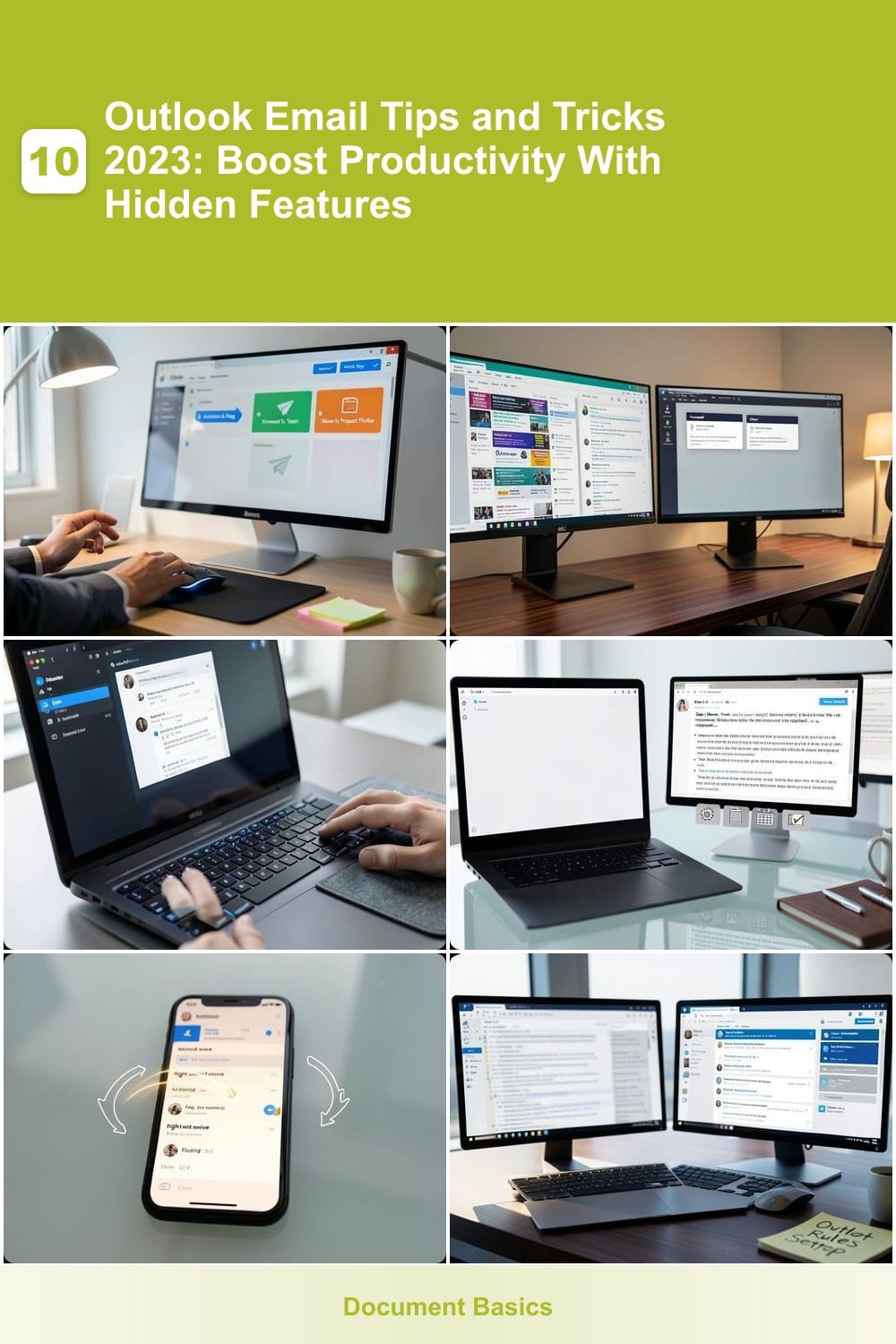
Struggling with repetitive email tasks that eat up your workday? Outlook’s Quick Steps feature lets you turn common actions—like archiving, flagging, or forwarding—into one-click workflows, cutting your inbox time by up to 40%. No coding or complex setup is required; just drag-and-drop actions into customizable buttons on your toolbar.
Create a \"Flag Urgent\" button to mark high-priority emails instantly, or set up a \"Send to Team Drive\" step to auto-forward files to your shared folder. You can even chain actions—like archive + flag + reply—into a single button. The best part? These steps sync across your devices, so your workflow stays consistent whether you’re at your desk or on the go.
Perfect for customer support reps, project managers, or anyone drowning in repetitive emails, Quick Steps turn Outlook into a productivity powerhouse. ⚡
Focused Inbox to Prioritize Important Emails
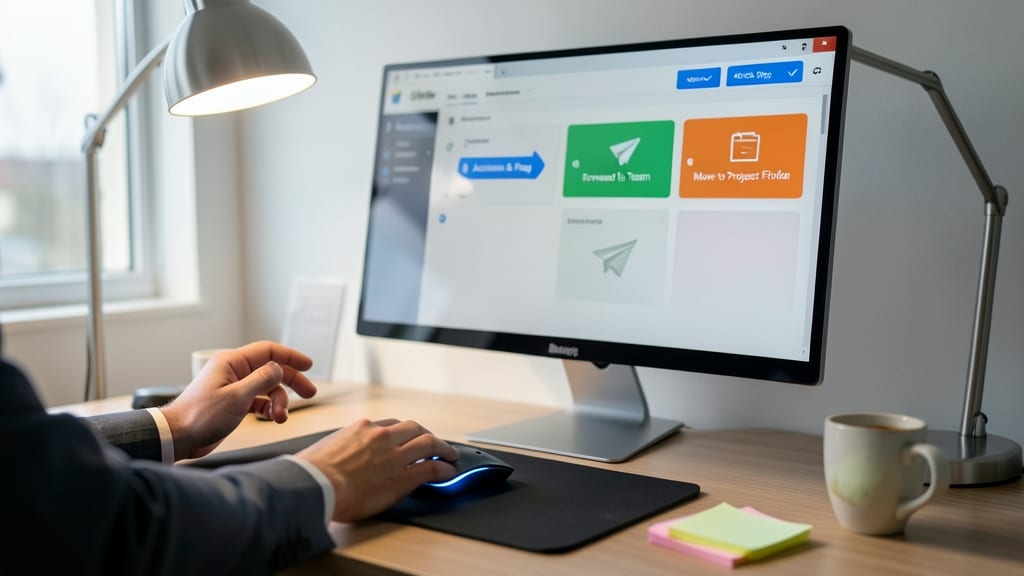
Drowning in promotional emails, newsletters, and low-value messages that distract you from what truly matters? Outlook’s Focused Inbox automatically sorts your inbox into two tabs—Focused (high-priority emails) and Other (everything else)—using machine learning to adapt to your habits. Unlike manual filters, this feature learns which emails you engage with most, ensuring critical messages never get buried under the noise.
To enable it, click the Focused Inbox icon in your toolbar (or toggle it in View > Focused Inbox). You can also train the AI by marking specific emails as important or ignoring promotional content. The system refines its predictions over time, cutting your inbox time by up to 30%—ideal for executives or professionals who need to prioritize actionable tasks without manual sorting.
Perfect for anyone juggling multiple priorities, this feature turns passive email management into an automated, intelligent workflow. Let Outlook work for you instead of against you. ✨
Keyboard Shortcuts to Navigate Outlook Faster
Tired of reaching for your mouse every time you need to reply, flag, or delete an email? Outlook’s 20+ keyboard shortcuts can cut your email time by 30%—no training required. These time-saving combos let you navigate folders, compose messages, and manage attachments without lifting your hands from the keyboard.
Start with the essentials: Ctrl+Shift+A for a new email, Ctrl+Y to reply, and Ctrl+Shift+K to open your calendar. Need more? Ctrl+Shift+R jumps to your reading pane, while Ctrl+Shift+D deletes the selected email instantly. Pro tip: Use Ctrl+Shift+J to jump to your junk folder, and Ctrl+Shift+I to open your inbox—perfect for power users who juggle multiple accounts.
This trick is a game-changer for developers, customer support reps, or anyone drowning in emails. Once you memorize these, you’ll wonder how you ever worked without them. ⚡
Email Templates for Repeated Responses
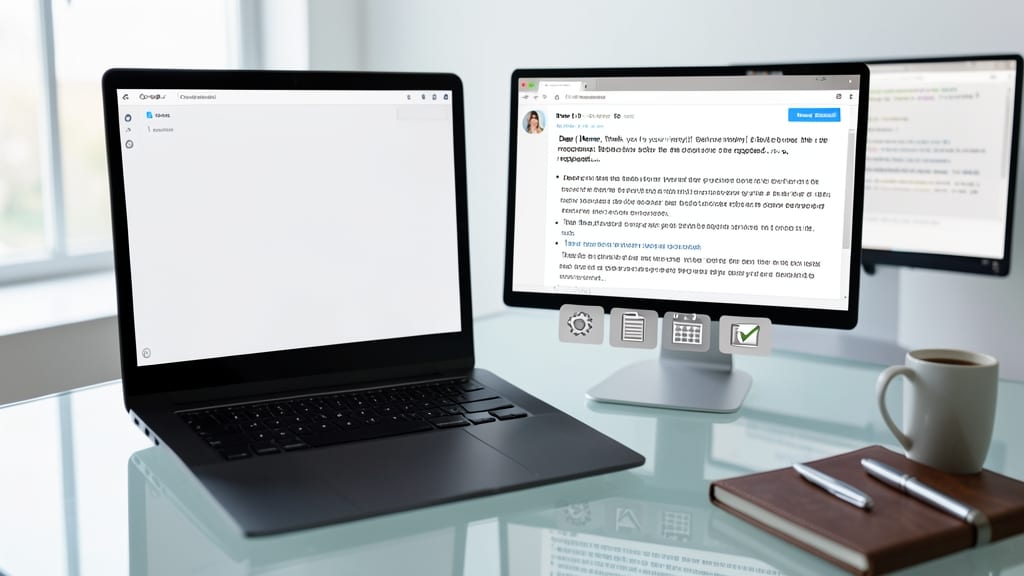
Tired of typing the same responses over and over? Outlook’s email templates let you save time by creating reusable snippets for common replies—whether it’s a customer support FAQ, HR onboarding message, or project update. This hidden feature turns repetitive tasks into one-click solutions, cutting down your daily email workload by up to 30%.
To get started, compose your standard reply, then click File > Save As and choose Outlook Template (*.oft). Name it something clear (like "Client Follow-Up" or "Meeting Confirmation") and save it to your Templates folder. Next time, just hit New Email, go to Templates, and select your saved reply—ready to customize with a few clicks. You can even insert merge fields (like [Name] or [Date]) for dynamic placeholders.
This trick is a game-changer for customer support teams, HR professionals, or anyone drowning in repetitive emails. Spend less time typing and more time focusing on what matters. ✨
Swipe Gestures for Mobile Outlook
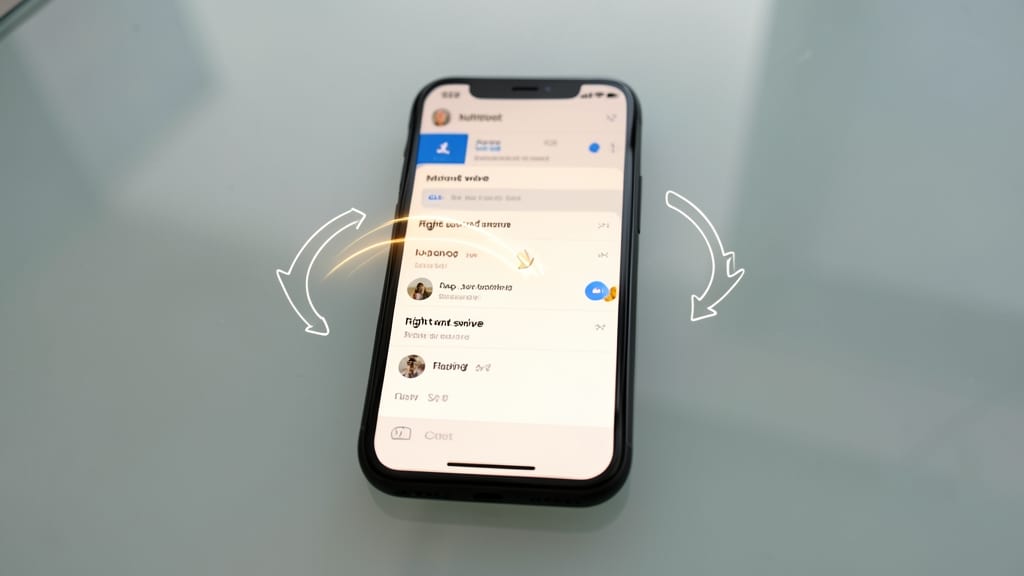
Tired of tapping through menus to manage emails on your phone? The Mobile Outlook app transforms your smartphone into a lightning-fast email machine with swipe gestures—no extra taps required. Simply swipe right to archive, left to delete, or swipe up to flag messages as important, turning your inbox into a one-handed productivity tool.
Customize gestures in Settings > Mail > Swipe Actions to match your workflow, whether you’re a sales rep prioritizing leads or a student flagging urgent assignments. The app syncs seamlessly with your desktop version, so changes reflect instantly across devices. For power users, combine gestures with Quick Steps (from a previous tip) for a truly hands-free experience.
This trick is a game-changer for mobile professionals—sales teams on the road, executives in meetings, or anyone who needs to clear emails while multitasking. ⚡
Rules to Auto-Organize Your Inbox
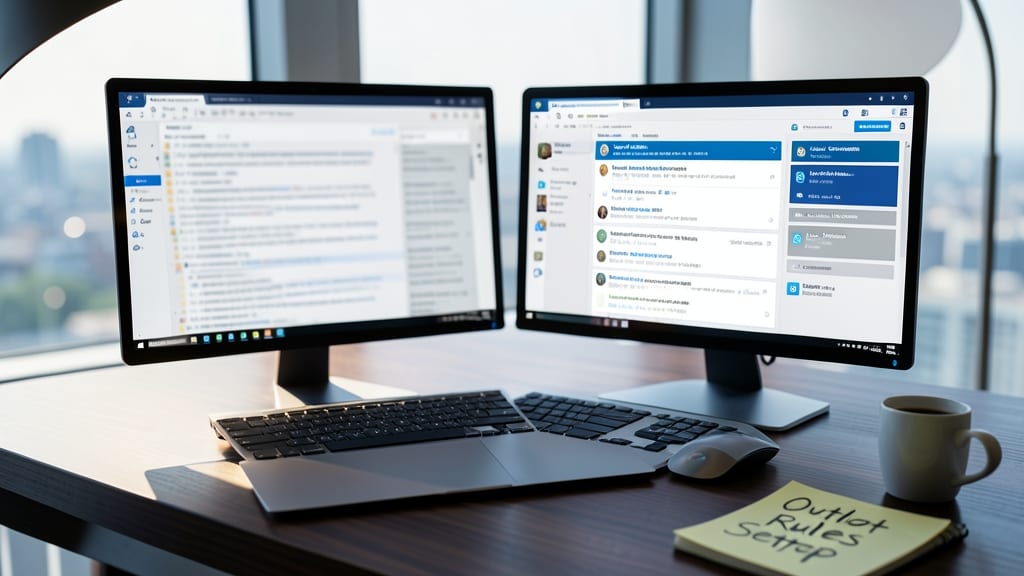
Tired of manually sorting through hundreds of emails every day? Outlook’s Rules feature can automatically organize your inbox for you—no extra effort required. These rules let you filter emails by sender, keywords, or even attachments, so important messages land in the right folders instantly.
Set up a rule to move all emails from your boss into a "Work" folder, forward receipts to a shared team drive, or flag invoices with "payment due." You can even create rules to delete spam or promotional emails before they clutter your inbox. The best part? Rules work silently in the background, saving you hours every week.
Perfect for small business owners, freelancers, or anyone drowning in emails, this feature turns Outlook into a self-managing inbox. ⚡
Search Operators for Advanced Email Finding
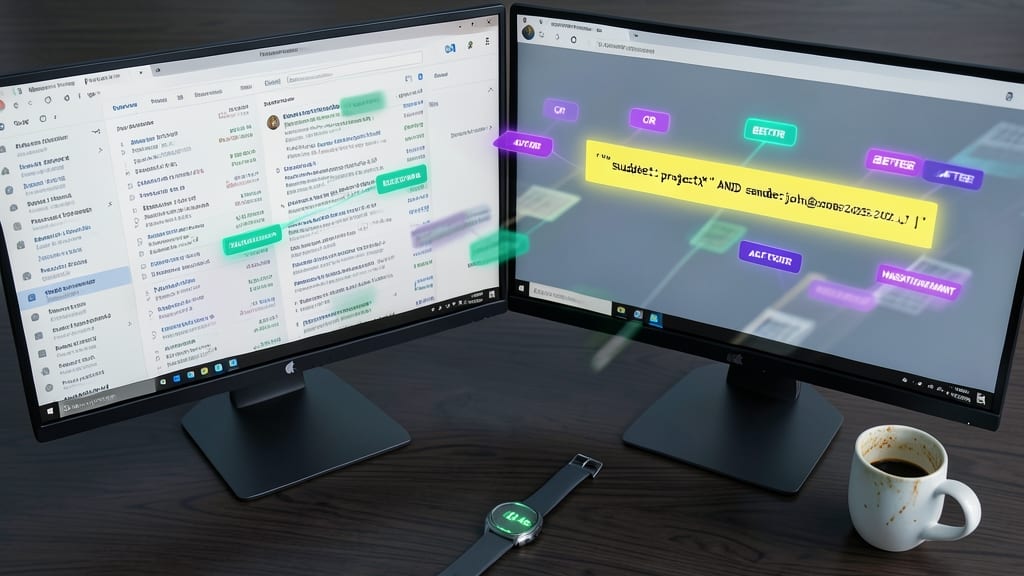
Drowning in years of emails but need to find that one specific message in seconds? Outlook’s search operators act like a secret decoder ring for your inbox. Instead of scrolling endlessly, use Boolean logic to pinpoint emails with military precision—no manual sifting required.
Try these power combos: from:client@example.com to filter by sender, subject:"project update" AND has:attachment to find only relevant files, or before:1/1/2023 to dig into archived messages. Pro tip: Add flagged:yes to hunt down urgent emails buried under promotions. These work in both desktop and mobile Outlook, turning your inbox into a searchable database. 💻
Focused Inbox with AI-Powered Prioritization
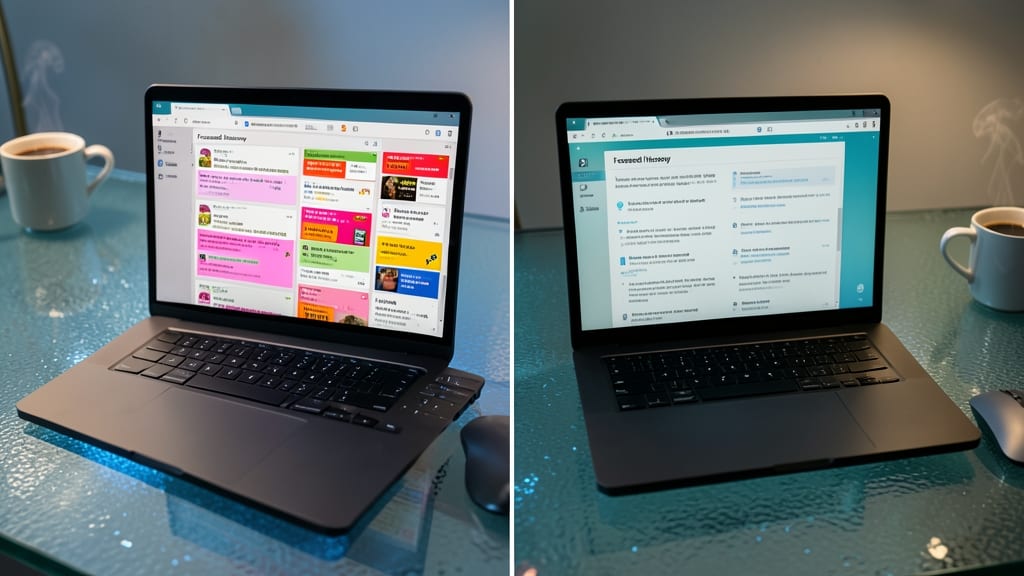
Tired of drowning in emails where critical messages get buried under promotions and notifications? Outlook’s AI-powered Focused Inbox adapts to your habits, learning which emails truly matter to you—no manual sorting required.
With machine learning, Outlook analyzes your actions (like opening or replying to emails) to prioritize content automatically. The Focused Inbox tab surfaces high-priority messages first, while the Other tab collects low-value emails. You can also train the AI by marking specific emails as important or ignoring promotional content. Over time, it refines its predictions, cutting your inbox time by up to 30%.
Perfect for executives, freelancers, or anyone juggling multiple priorities, this feature turns passive email management into an active, intelligent workflow. Let your inbox work for you instead of against you. ✨
Clean Up Conversation Threads Instantly
Tired of scrolling through endless email threads where every reply and forwarder adds noise? Outlook’s Clean Up feature lets you instantly trim the fat from long conversations—keeping only the original message and your replies while hiding forwarded emails, signatures, and redundant replies.
To use it, simply open any email thread, click the three-dot menu in the toolbar, and select Clean Up. Outlook will collapse all but the first message and your responses, making it easy to focus on what matters. You can even pin the cleaned-up version to keep it visible. This works seamlessly in both desktop and web versions of Outlook.
Perfect for teams collaborating on projects or anyone drowning in forwarded emails, this feature saves time and keeps discussions concise and actionable. ✨
Dark Mode for Reduced Eye Strain

Late-night coding sessions or early-morning meetings? Outlook’s dark mode transforms your screen into a low-glare haven, cutting eye strain by up to 30%—especially in dim lighting. The black background with white text reduces blue light exposure, helping you stay focused longer while protecting your vision during those marathon work sprints.
Enabling it is effortless: Go to View → Show Dark Layout (Windows) or Outlook → Preferences → Display (Mac). For extra comfort, pair it with Windows Night Light (Windows) or Night Shift (Mac) to further adjust color temperature. This combo is a game-changer for developers debugging at 2 AM or night-shift workers managing emails under fluorescent lighting.
Perfect for anyone battling digital eye fatigue, dark mode isn’t just a gimmick—it’s a battle-tested setup for prolonged screen time. ✨