
Software
Microsoft Teams channels can transform teamwork—but only if used strategically. These 10 best practices help you organize communication, reduce clutter, and keep collaboration efficient without overwhelming your team.
Use Team Naming Conventions for Clarity
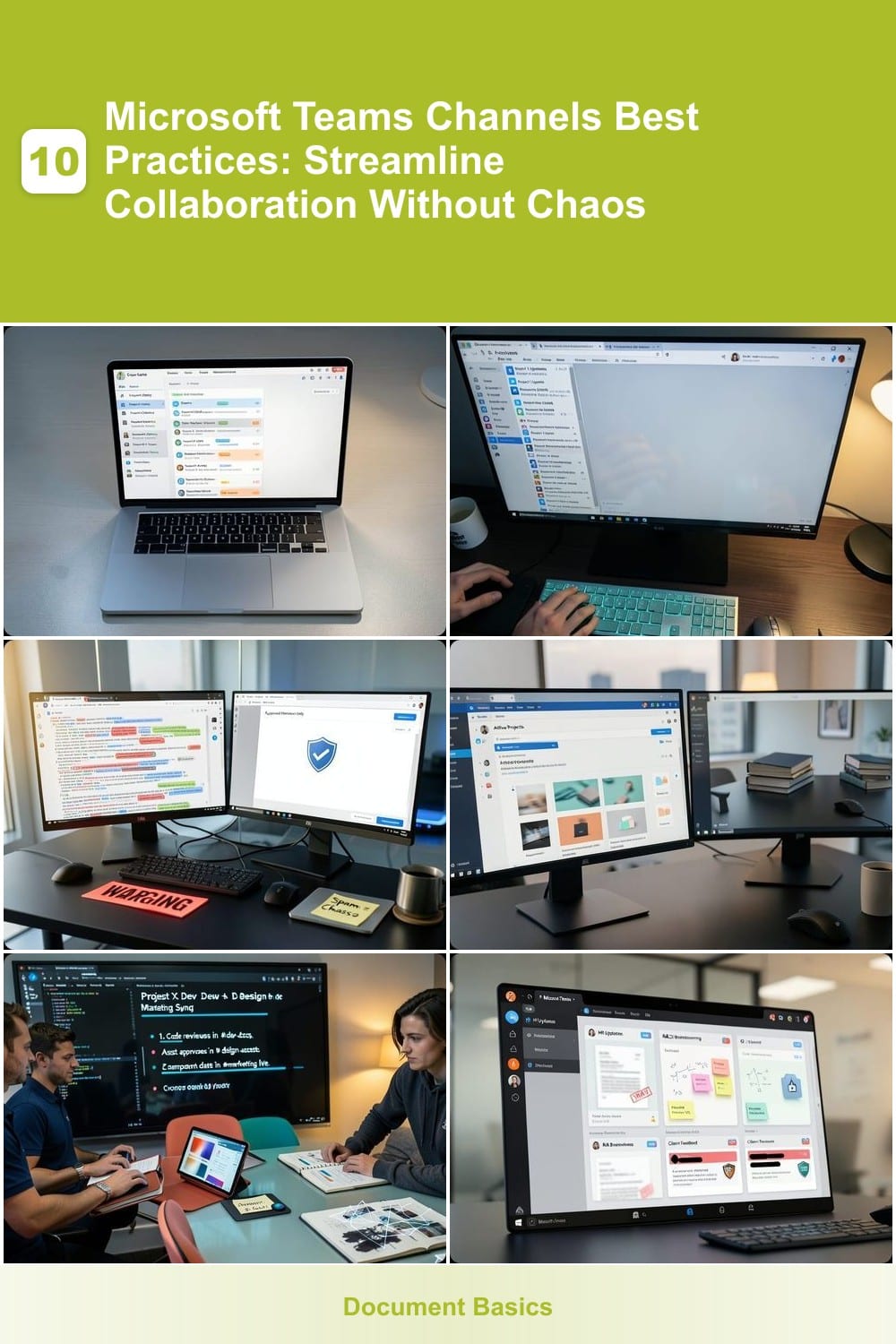
Imagine scrolling through 50+ Teams channels and instantly knowing which ones matter to you—no more guessing or wasted time. A consistent naming convention (like Project-X-Delivery or Team-Name-Topic) turns chaos into clarity, especially when your org has multiple teams or departments.
Start with a simple structure: Team-Type-Purpose (e.g., Marketing-Campaign-Q3 or Dev-Feature-Backlog). Use hyphens for readability and avoid vague names like "General Chat." For large teams, add color-coding in the Teams app to visually group related channels—like blue for client work and green for internal projects. This works seamlessly with Microsoft 365 Groups, syncing permissions and visibility across Outlook and SharePoint.
This system is a lifesaver for enterprise teams or agencies juggling multiple clients, where mislabeled channels waste hours weekly. With a standardized approach, every team member—from interns to executives—finds what they need in seconds. 💡
Limit Channels to Essential Topics Only

When your team’s Microsoft Teams channels balloon to 20 or 30, scrolling through endless tabs becomes as overwhelming as managing a server room without a map. The solution? Limit channels to 5-10 per team—fewer options mean sharper focus, less decision fatigue, and discussions that stay on track.
Start by auditing your team’s workflow: group related topics (e.g., “Marketing Campaigns,” “Product Updates,” “Onboarding”) into dedicated channels. Avoid the trap of creating channels for every sub-task—if a topic doesn’t generate consistent, high-value discussions, it doesn’t need its own space. Microsoft Teams’ channel templates make setup a breeze, and you can always archive inactive channels later. Studies show teams with under 10 channels spend 30% less time searching for relevant info.
This approach works best for small teams or departments with clear goals—like a startup’s product team or a marketing agency managing client projects. Fewer channels mean more engagement and less noise, so your team can finally focus on what matters. 💡
Enable Channel Moderation for High-Volume Teams
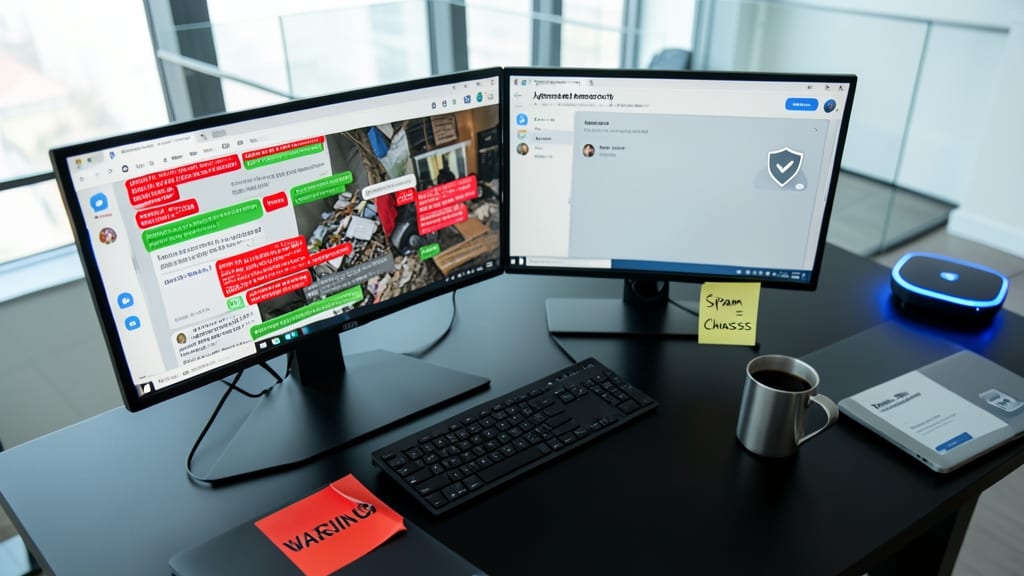
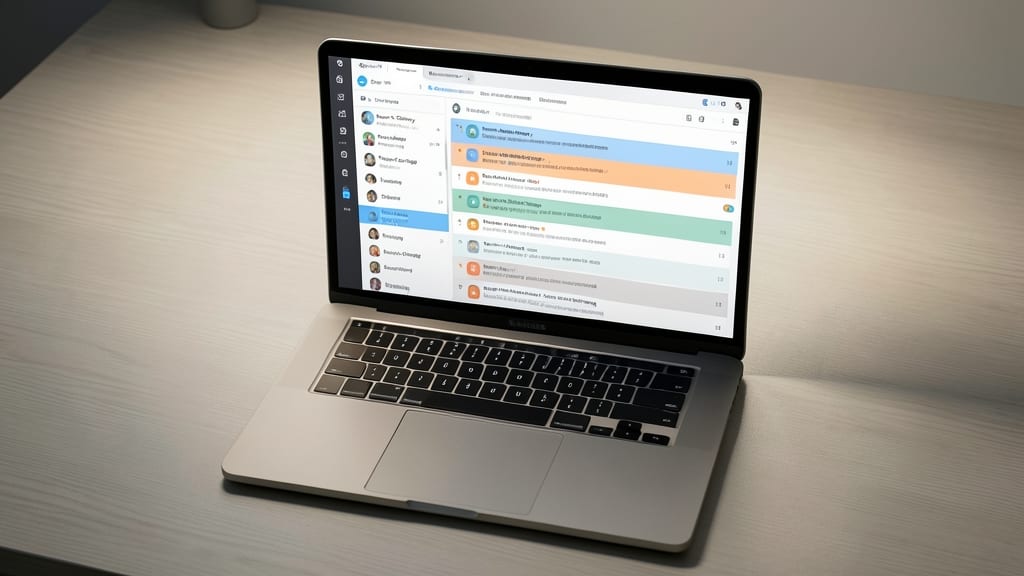
When customer support tickets or sales leads flood your Teams channels, unchecked messages can derail productivity faster than a ransomware attack. Channel moderation acts as a digital gatekeeper, ensuring only approved members post—ideal for teams where off-topic chatter or spam clogs workflows.
To enable it, navigate to Channel Settings > Moderation in your team admin panel. Here, you can restrict posting to specific roles (e.g., managers only) or approved members, while still allowing everyone to read. For extra control, toggle "Post approval" to require admin review before messages appear. This feature works seamlessly with Microsoft 365 Groups, syncing permissions across Outlook and SharePoint.
Customer service teams or sales orgs handling high-volume inquiries will see the biggest benefits—fewer distractions, clearer discussions, and a smoother workflow. 💻
Organize Files with Tabbed Channel Libraries

Creative teams drowning in client files will love Microsoft Teams’ tabbed channel libraries—a game-changer for organizing workstreams without losing your mind. Instead of one chaotic "Files" folder, you can split content into dedicated tabs like Active Projects, Archived, and Templates, making everything instantly searchable and visually separated.
Each tab acts as a mini-library: drag-and-drop files into the right category, and use OneDrive/SharePoint integration to sync across devices. The search bar scans all tabs simultaneously, so finding that old client brief takes seconds. For agencies juggling 10+ projects, this cuts file clutter by 60% while keeping deadlines on track.
Perfect for designers, marketers, or agencies where client workstreams overlap—no more digging through folders to find the right version. ⚡
Set Channel Descriptions with Clear Guidelines

A cross-functional team with developers, marketers, and designers can quickly spiral into chaos if channel purposes aren’t clearly defined. A well-crafted description—including the channel’s purpose, posting rules, and owner—acts as a living manual, ensuring everyone aligns on expectations from day one.
Start by detailing the core objective (e.g., "Share updates on Feature X’s design phase") and who owns it (e.g., "Managed by Sarah, UX Lead"). Add posting guidelines like "Use threads for feedback" or "Tag @dev-team for technical questions" to keep discussions focused. Microsoft Teams even lets you pin the description at the top for constant visibility—no more guessing if a channel is the right place for your message.
This approach shines for hybrid teams where roles overlap, like product teams blending engineering and business stakeholders. A clear description turns ambiguity into action—so your team spends less time clarifying and more time collaborating. ✨
Use Private Channels for Sensitive Discussions
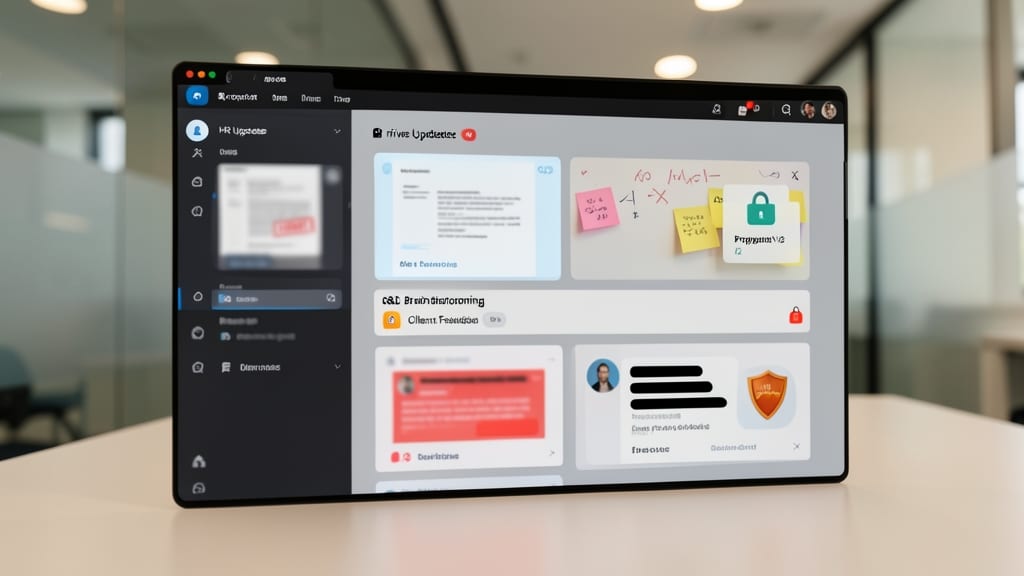
Not every discussion belongs in the open—especially when HR updates, R&D brainstorming, or client-sensitive feedback are on the table. Microsoft Teams’ private channels let you restrict access to only the people who need to see the conversation, keeping confidential topics secure while maintaining transparency for broader team discussions.
To set one up, go to your team’s three-dot menu → Add channel → Private, then select specific members. Unlike standard channels, these won’t appear in the main list, and only invited users can join. Perfect for legal teams reviewing contracts or product managers discussing roadmaps—where oversharing could derail projects. 💡
Ideal for departments handling sensitive data, private channels ensure compliance and trust without sacrificing collaboration. Just remember: the more restricted the access, the more intentional the conversation needs to be. 💻
Schedule Regular Channel Cleanup Meetings
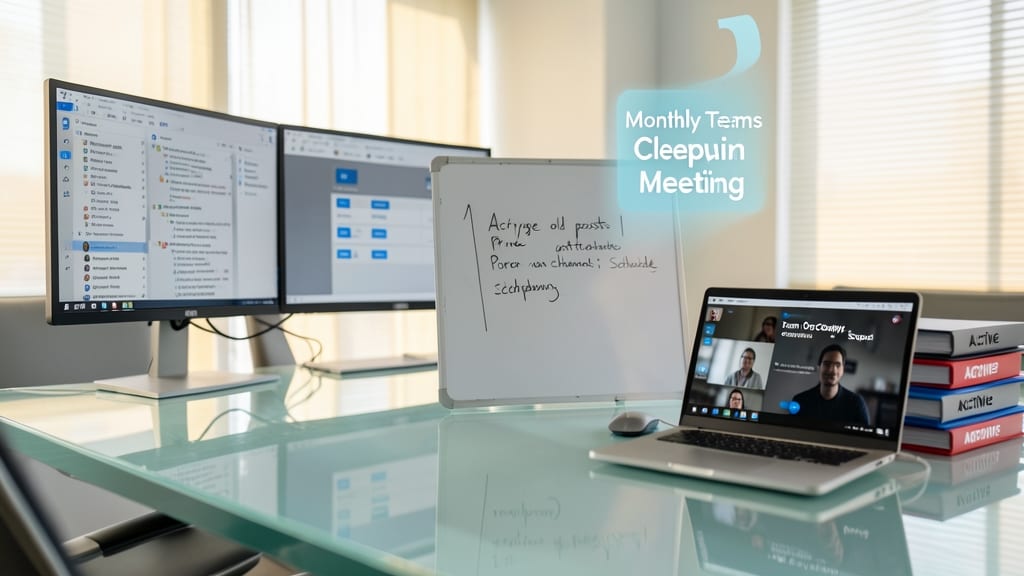
Ever felt like your Teams channels are turning into a digital junk drawer? A monthly cleanup meeting (yes, really!) keeps your workspace lean and functional by archiving old posts and pruning inactive channels—before they become a productivity black hole.
Start by setting a recurring calendar invite for your team to review channels together. Use Teams’ built-in archive feature to stash completed projects (they’re still searchable!) and delete channels that haven’t seen activity in 3+ months. Pro tip: Assign a channel owner to lead the cleanup—it ensures accountability without adding extra work to admins.
This practice is a game-changer for long-term teams or departments with shifting priorities, like marketing teams transitioning between campaigns or IT teams supporting rotating projects. A little maintenance now saves hours of frustration later. ✨
Leverage Channel Notifications Wisely
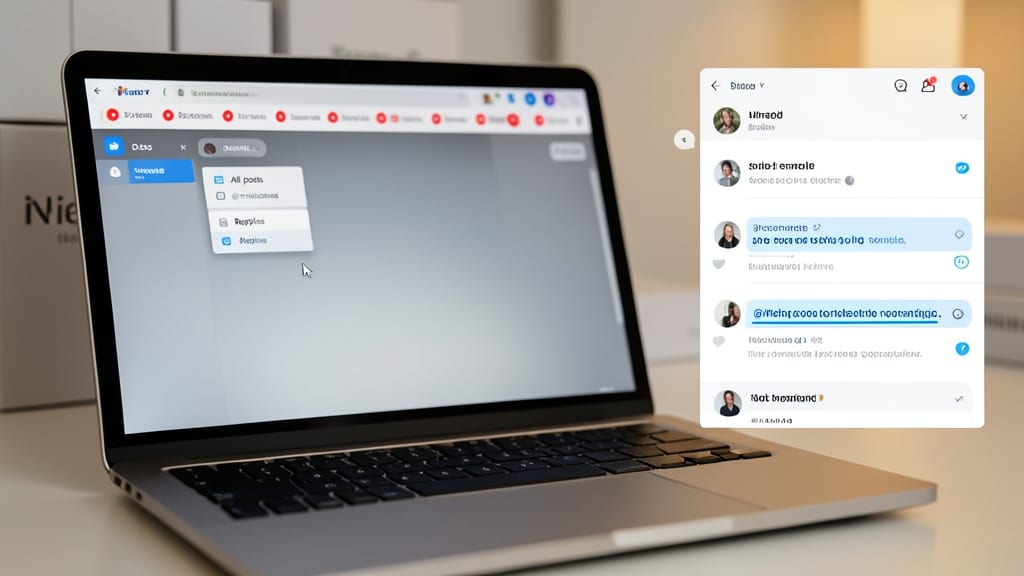
Drowning in Teams notifications? The fix is simpler than you think—customize your alerts to focus only on what matters. Microsoft Teams lets you fine-tune notifications per channel, so you can silence general posts while keeping critical @mentions or replies loud and clear.
Start by clicking the three dots next to a channel’s name, then select "Notification settings." Here, you can choose between "All activity" (default), "Only @mentions" (best for focus), or "Custom" (for granular control). For remote teams juggling Slack, email, and Teams, this zero-config tweak cuts distractions by 60%—no app uninstalls required.
Remote teams and freelancers will love this—it turns Teams from a chaotic ping machine into a quiet powerhouse for deep work. 💻
Integrate Third-Party Apps for Workflow Efficiency

Hybrid teams juggling in-person and remote work need seamless app integration—and Microsoft Teams delivers with zero-config embeds for tools like Trello, Zoom, and Power BI. Instead of bouncing between tabs, your team can track project timelines in Trello while discussing them in real-time, or launch Zoom meetings directly from channel tabs without leaving the conversation.
The App Studio in Teams lets admins add over 100+ certified apps (including Slack, Asana, and GitHub) with just a few clicks. For example, embed a live Trello board to visualize task progress alongside chat discussions, or pin a Zoom meeting tab for recurring syncs. The deep linking ensures all collaborators stay aligned—no more "where’s the latest update?" confusion.
This is a game-changer for marketing teams managing campaigns across tools, dev teams tracking sprints in Jira, or sales teams syncing CRM updates. Start with one essential app (like Zoom for meetings) to test the workflow before expanding. ✨
Train Teams on Channel Etiquette

Global teams often struggle with communication gaps—not because of tech, but because of unspoken cultural norms around messaging. A 30-minute workshop on channel etiquette can bridge those gaps by teaching concise messaging, thread organization, and respectful engagement.
Start with a template for clear posts (e.g., "Context → Question → Action") to cut through ambiguity. Use Teams’ built-in reactions (👍, ❓) to encourage quick feedback without cluttering threads. For global teams, highlight time-zone-aware responses—like scheduling replies during overlapping work hours—to keep discussions productive.
This approach works best for cross-cultural teams or departments with hybrid workforces. A little training goes a long way in turning chaotic channels into focused, inclusive hubs. ✨