
Tip & Trick
Microsoft Word is the go-to tool for millions, but most users only scratch the surface of its capabilities. These seven hidden Microsoft 365 Word tips and tricks will transform your workflow, save hours of manual work, and unlock features you never knew existed—all accessible right from your browser or desktop.
Quick Parts Gallery for Reusable Content Blocks
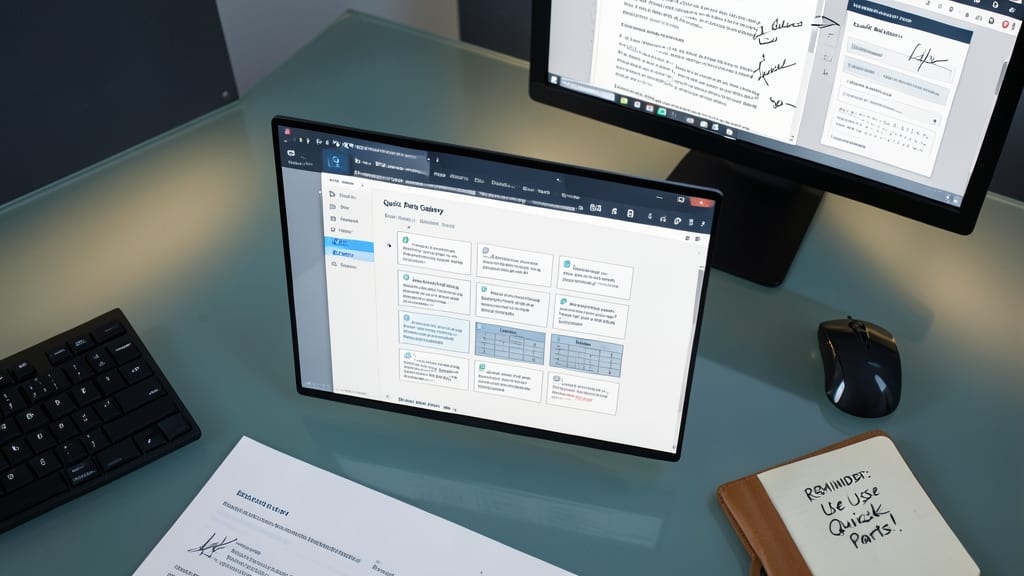
Ever wasted time retyping the same disclaimers, signatures, or tables in every document? Microsoft Word’s Quick Parts Gallery lets you store and reuse content blocks in seconds—no copy-pasting required. This hidden gem is perfect for legal teams, freelancers, or anyone juggling repetitive templates.
To get started, type your text or insert a table, then click Insert > Quick Parts > Save Selection to Quick Part Gallery. Now, simply navigate to Insert > Quick Parts to insert your saved content anywhere with a click. You can even categorize blocks (e.g., "Legal," "Branding") for easy access. The gallery supports text, tables, and graphics, making it ideal for contracts, reports, or standardized forms.
This trick is a lifesaver for professionals who draft similar documents weekly—like HR policies or client proposals. Spend less time formatting and more time focusing on what matters. ⚡
Track Changes with Comments and Final Review
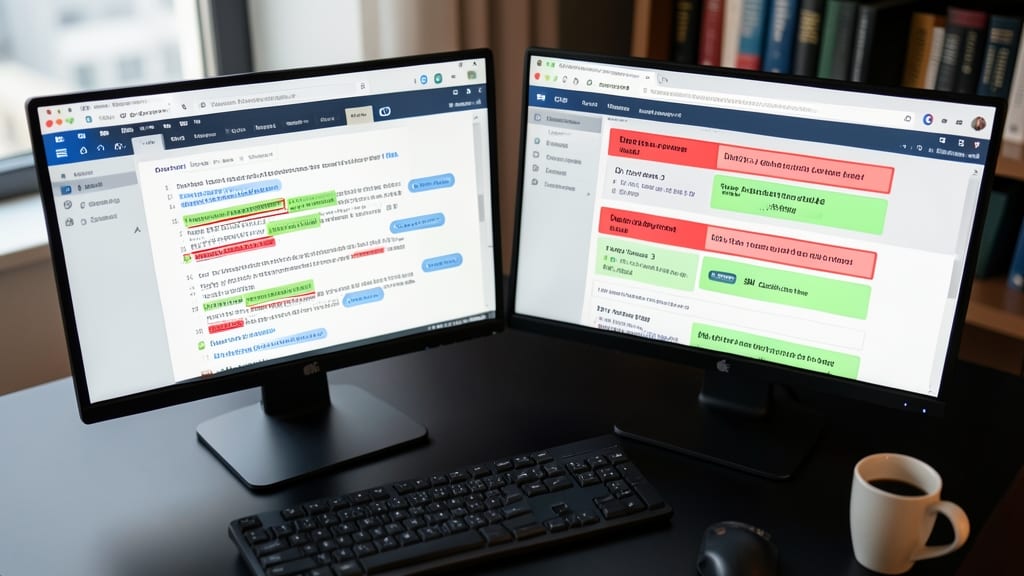
Struggling to keep track of edits in collaborative documents? Microsoft 365 Word’s Track Changes feature lets you mark additions, deletions, and comments—then accept or reject them all in one place. It’s the ultimate tool for legal teams, academics, or anyone working on shared projects where version control matters.
Enable it by clicking Review > Track Changes (or press Ctrl+Shift+E). Add comments with contextual notes, and use the Final Review tool to clean up edits before sharing. The feature even supports multi-author collaboration with color-coded changes and a revision history that shows who made what edits. For extra security, lock the document to prevent accidental changes.
Perfect for lawyers finalizing contracts, professors reviewing student drafts, or managers aligning team reports—this feature turns messy edits into a structured, auditable process. Try it next time you need a battle-tested setup. ⚡
Dictate Text Directly into Word Using Voice Commands
Tired of typing long emails or reports that leave your fingers cramped? Microsoft 365’s Dictate feature lets you speak your text directly into Word with 95%+ accuracy, turning voice into polished documents in seconds. Perfect for professionals on the go, accessibility needs, or when your hands are full.
To get started, click the microphone icon in the Home tab (or press Win + H on Windows). Dictate punctuation like "comma" or "period," and Word handles formatting—bold, italics, or bullet points—just by saying "bold" or "bullet." Works offline too, and supports 10+ languages, making it a game-changer for multilingual users.
Busy executives, writers with repetitive strain injuries, or anyone who multitasks will love this hands-free workflow. Give it a try and watch your typing speed skyrocket! ✨
Insert Screenshots or Screen Recordings with Snipping Tool
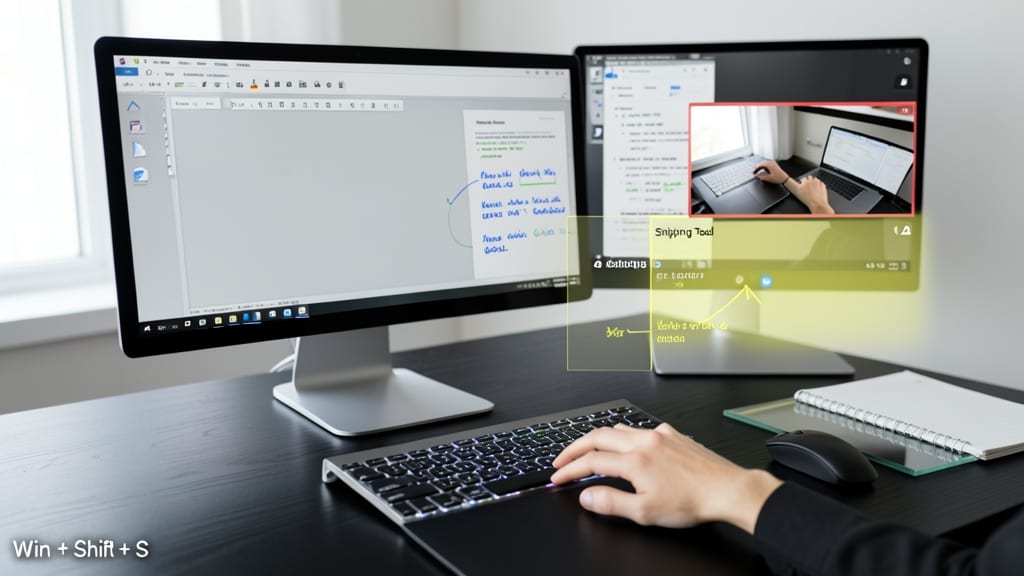
Need to illustrate a process, annotate meeting notes, or create a step-by-step guide? Word’s built-in Snipping Tool integration lets you capture screenshots or record short videos directly from the app—no third-party tools required.
Simply press Win + Shift + S to open the Snipping Tool, select your capture type (rectangular, freeform, window, or full screen), and embed it instantly into your document. For screen recordings, use the delay timer (up to 10 seconds) to prepare your screen before capturing. Supports MP4 video clips (up to 1 minute) and PNG/JPEG screenshots with transparent backgrounds.
Perfect for tech writers, trainers, or anyone documenting workflows—eliminate the hassle of switching apps mid-task. ✨
AutoCorrect Customization for Brand Consistency
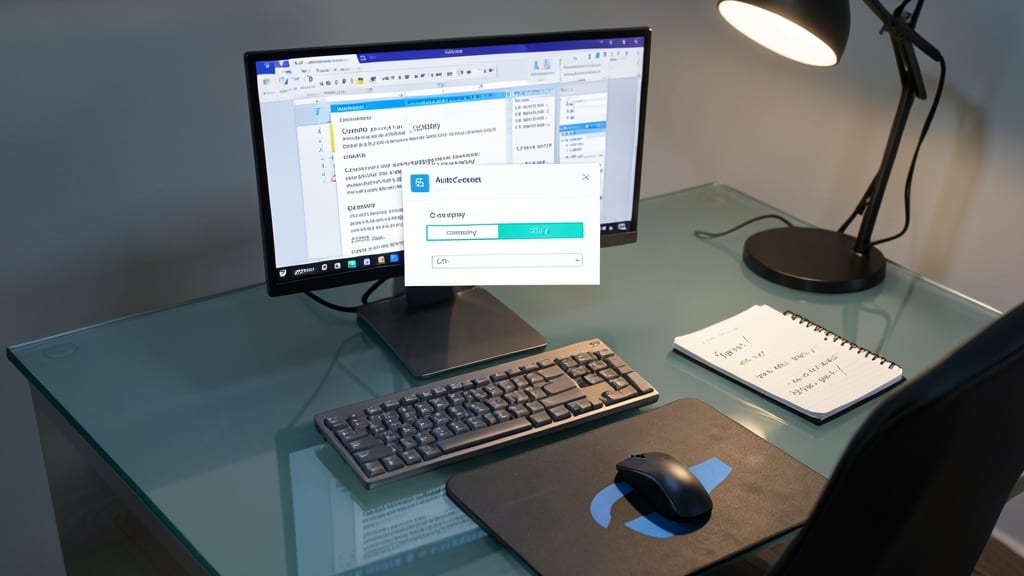
Tired of inconsistent branding or repetitive typos slipping into your documents? Microsoft Word’s AutoCorrect customization lets you enforce your brand’s voice automatically—no manual fixes required.
To set it up, press Ctrl+F7 to open the AutoCorrect dialog, then add entries like "@company" to auto-insert your logo or "AI" to standardize abbreviations. You can even use this for frequently misspelled terms (e.g., "recieve" → "receive") or boilerplate phrases (e.g., "© 2024 [Company]"). The feature works across all Word documents, ensuring consistency every time. ⚡
This is a game-changer for marketing teams, educators, or freelancers who need polished, error-free content without extra effort. Just one click to set up, and your documents stay on-brand effortlessly! 💡
Compare Two Documents Side-by-Side for Edits
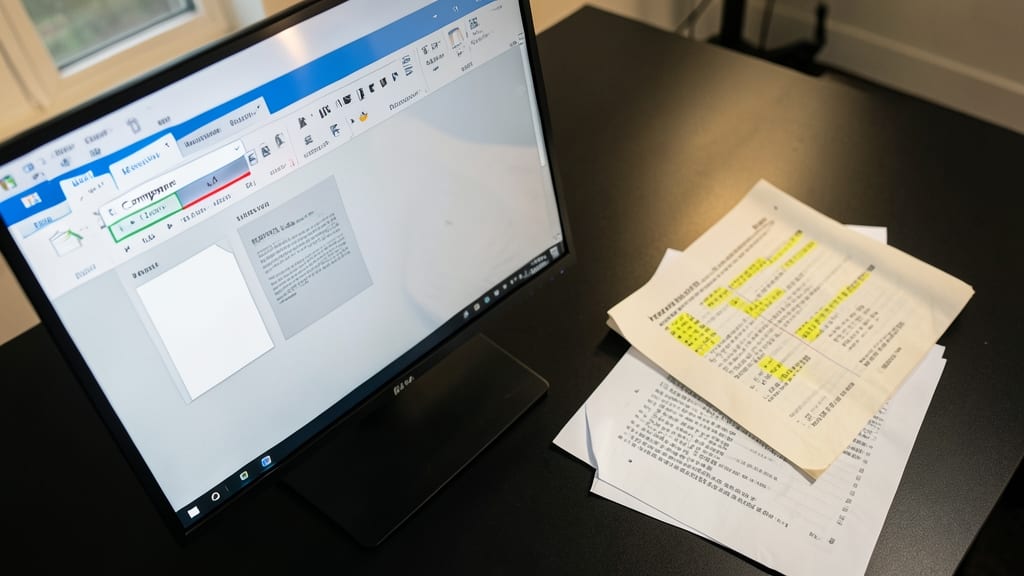
Ever wasted hours manually cross-referencing two versions of the same document? Microsoft Word’s Compare feature lets you merge or highlight differences in seconds—ideal for legal teams, academics, or anyone tracking revisions between drafts.
Open the Review tab, click Compare, and select both documents to instantly see changes in a side-by-side view. You can choose to highlight changes, merge content, or even track formatting differences. The feature supports PDF exports and integrates with Track Changes for seamless collaboration.
Perfect for lawyers reviewing contracts, professors comparing student drafts, or project managers aligning team revisions—no more squinting at two screens! ✨
Use Tell Me to Discover Hidden Features
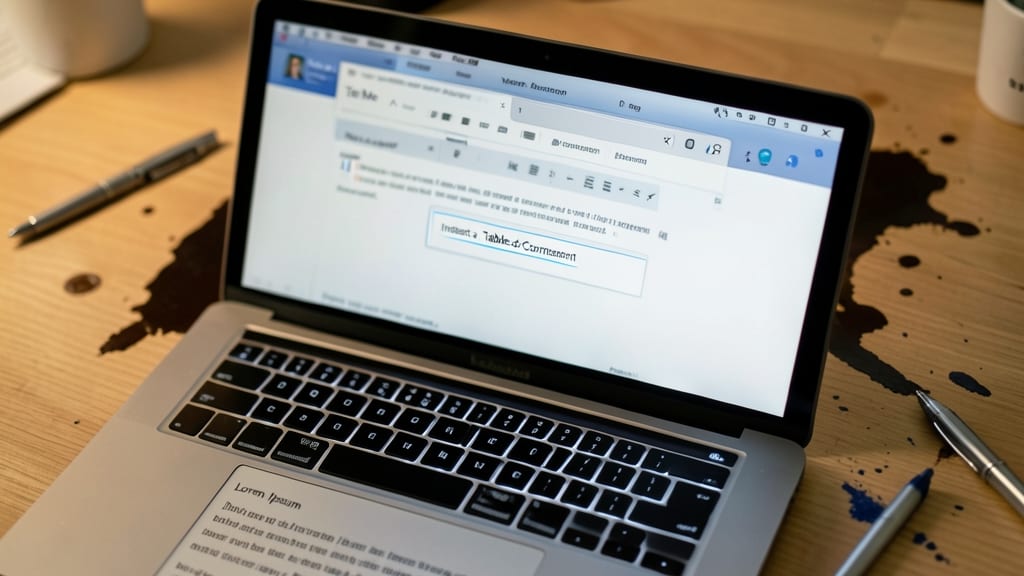
Tired of hunting through menus to find the right tool? Tell Me in Microsoft Word acts like a personal assistant, turning your plain-English requests into instant actions. Simply type what you want to do—like "insert a table of contents" or "add page numbers"—and Word suggests the exact command, complete with shortcuts.
This feature works across all Microsoft 365 versions, including desktop and web apps. Need to create a mail merge or format headers? Just ask. It even learns from your habits, surfacing relevant tools faster over time. The best part? No memorizing obscure shortcuts—just natural language commands that work every time.
Perfect for new users who want to explore Word’s capabilities without frustration, or power users who’ve mastered shortcuts but crave even faster access. Give it a try—you’ll wonder how you ever lived without it. ✨