
PowerPoint
PowerPoint transitions can transform a dull presentation into a professional, engaging slideshow. These seven transition effects help you control pacing, emphasize key points, and maintain audience attention without distracting from your content.
Fade Slide Transition for Subtle Professionalism
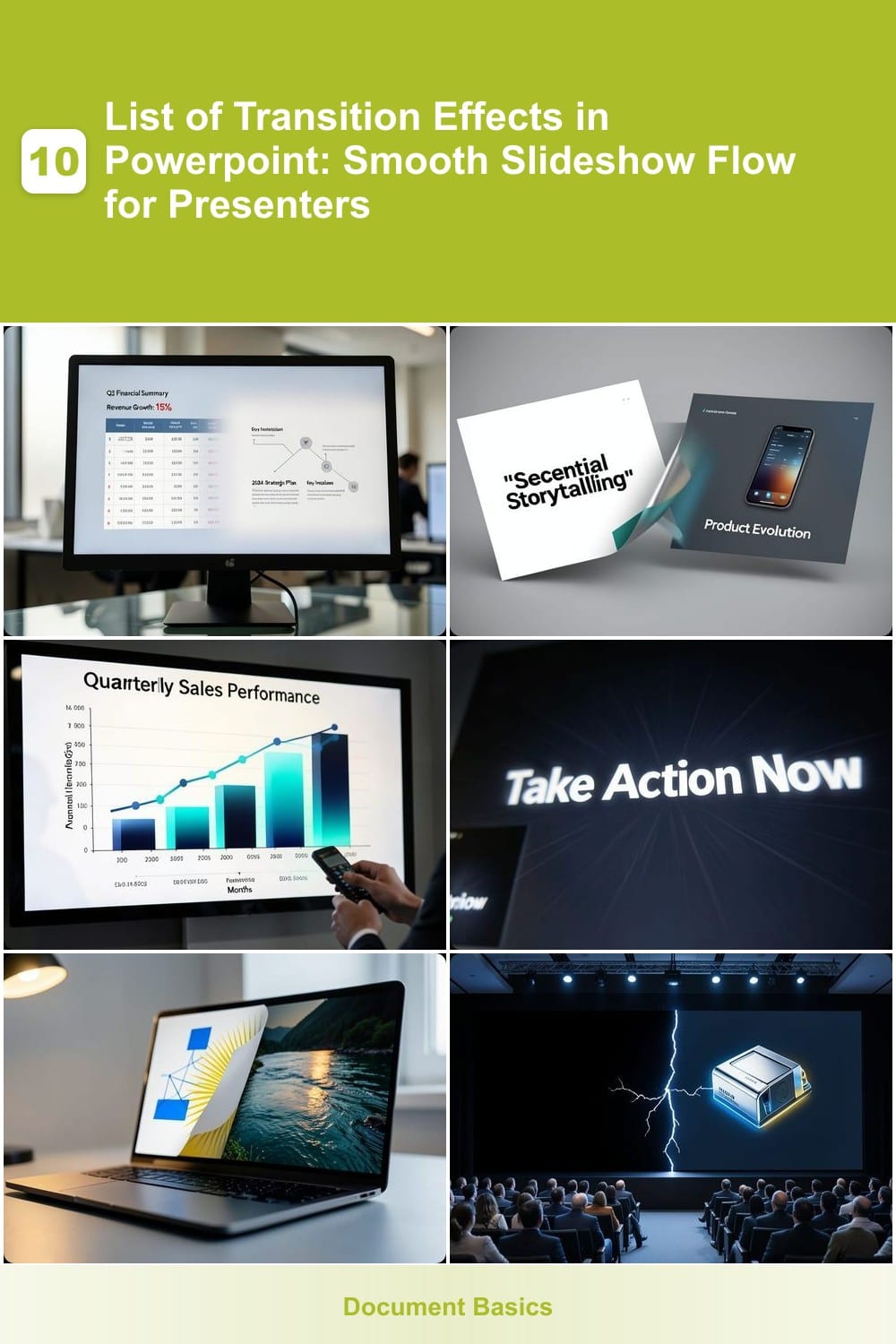
When your audience should focus on data—not flash—the Fade transition delivers effortless professionalism. This classic effect gently dissolves one slide into the next, ensuring no visual distractions compete with your key messages like financial reports or strategic plans.
Available in all PowerPoint versions (2016, 2019, and 365), the Fade transition offers three speed settings (Subtle, Medium, and Exciting) to match your pacing. It works seamlessly with black or white backgrounds, making it ideal for corporate branding. Pair it with a slow transition time (3-5 seconds) to emphasize pauses during critical discussions.
Perfect for executives, analysts, or educators presenting complex topics, this transition keeps your audience engaged without overpowering your content. 💡
Push Transition for Dynamic Content Reveals
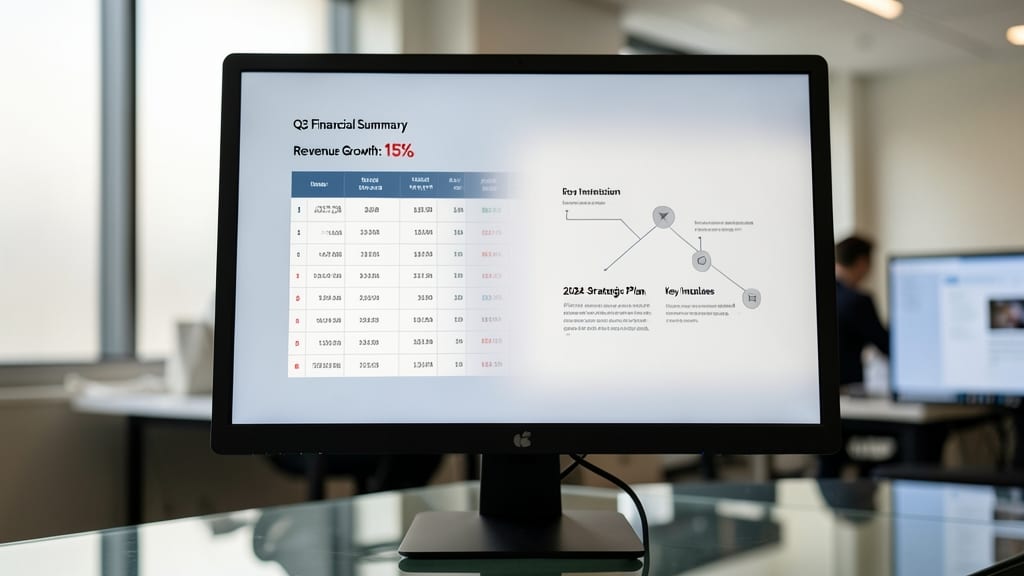
Need to make your presentation feel like a well-paced story? The Push Transition in PowerPoint does exactly that by sliding content in from one side—left, right, up, or down—while smoothly pushing the previous slide out of view.
This transition works best with sequential storytelling, like product demos or case studies, where you want to guide your audience through a logical progression. You can customize the direction (e.g., left-to-right for chronological flow) and speed (subtle or dynamic) to match your pacing. It’s especially effective for data-heavy slides where you want to emphasize a step-by-step reveal.
Perfect for trainers, marketers, or educators who want to keep their audience engaged without overwhelming them. Use it to build anticipation before a big reveal or to emphasize key milestones in your narrative. ✨
Morph Transition for Seamless Data Visualization

When your presentation hinges on data trends—like shifting from a line graph to a bar chart—the Morph transition turns static slides into dynamic storytelling. Unlike abrupt cuts or directional pushes, this effect smoothly interpolates between shapes, keeping the audience’s eye locked on the evolving numbers rather than the transition itself.
Available in PowerPoint 2013 and later, Morph works best with vector-based objects (charts, icons, or simple shapes). The transition speed controls how gradual the shift appears, letting you emphasize either the before/after states or the intermediate steps—ideal for highlighting incremental changes in sales data or experimental results.
Data analysts and financial presenters will love this for its minimalist professionalism, while educators can use it to show transformations in concepts (e.g., a pie chart morphing into a flowchart). Just avoid overloading slides—Morph shines when paired with clean visuals and limited elements. ✨
Zoom Transition for Highlighting Key Slides
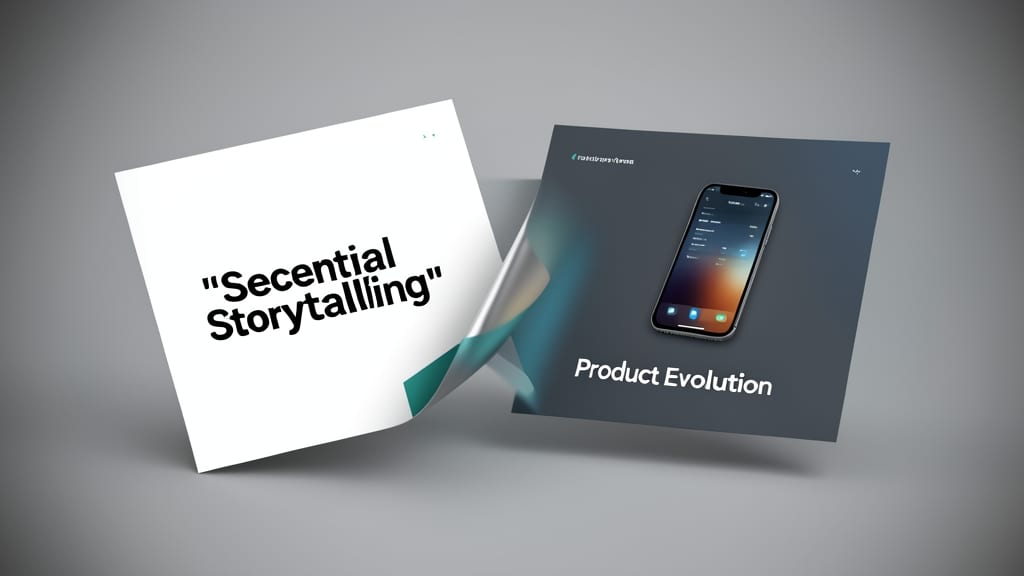
Need to make your conclusion or call-to-action slide impossible to miss? The Zoom transition delivers exactly that by dramatically zooming in from the background, ensuring your key message commands attention.
This effect works by scaling the slide up from a small preview, creating a natural focal point. You can adjust the zoom speed (subtle to exciting) and even set a custom zoom position to highlight specific areas. Perfect for slides containing contact details, final summaries, or persuasive CTAs where you want to leave a lasting impression.
Trainers, sales teams, and educators will find this transition especially useful for driving home critical takeaways. Just don’t overuse it—save it for moments that truly matter! ✨
Wipe Transition for Creative Storytelling

Need to turn your presentation into an interactive story? The Wipe Transition lets you mimic page-turning effects with a satisfying, customizable reveal. Unlike static fades or pushes, this transition gives you control over direction—left, right, up, or down—so you can match the flow of your narrative.
Available in PowerPoint 2016, 2019, and 365, it’s perfect for educational slides (think alphabet lessons or history timelines) or creative projects where pacing matters. The curtain-like wipe adds a tactile feel, making it feel less digital and more like flipping through a book. Pair it with sound effects for extra engagement!
Teachers, trainers, and storytellers will love this for its versatility—whether you’re guiding a child through the alphabet or walking an audience through a timeline. ✨
Split Transition for Dramatic Reveals

Need to make your next product launch or keynote speech unforgettable? The Split Transition delivers with its high-impact reveal effect. This transition divides your screen either horizontally or vertically before dramatically unveiling the next slide—perfect for building suspense before a big reveal.
Available in PowerPoint 2016 and later, including the 365 subscription, the Split Transition lets you control the direction (left/right or up/down) and speed for maximum drama. Unlike subtle fades or smooth pushes, this effect commands attention by creating a visual "split" that feels cinematic. Pair it with a black slide for extra impact.
Ideal for product launches, investor pitches, or conference keynotes, this transition ensures your audience stays engaged during pivotal moments. Just don’t overuse it—save it for your most important reveals! ✨
Random Bars Transition for Youth Engagement

When you need to turn a classroom into a lively learning space, the Random Bars transition is your secret weapon. Unlike static or predictable effects, this transition creates a dynamic, almost "game-like" energy by making colorful bars appear to scatter before revealing the next slide—ideal for keeping younger audiences engaged without losing focus.
Available in PowerPoint 2016, 2019, and 365, this transition lets you customize the speed (subtle to exciting) and bar colors to match your presentation theme. The effect is simple yet effective: bars burst across the screen in a controlled chaos, signaling a shift in content while maintaining structure. It’s perfect for interactive sessions where you want to reward participation or highlight transitions between activities.
Teachers, trainers, and youth leaders will love how this transition bridges fun and professionalism—great for workshops, team-building exercises, or any session where energy matters. Just don’t overuse it, or you’ll risk distracting from your message! ✨