
Troubleshooting
IT support teams lose countless hours chasing down repetitive issues. These 10 knowledge base articles solve common tech problems with step-by-step guides, visual aids, and expert insights—cutting resolution time by 40% or more.
How to Reset a Forgotten Windows Password Instantly
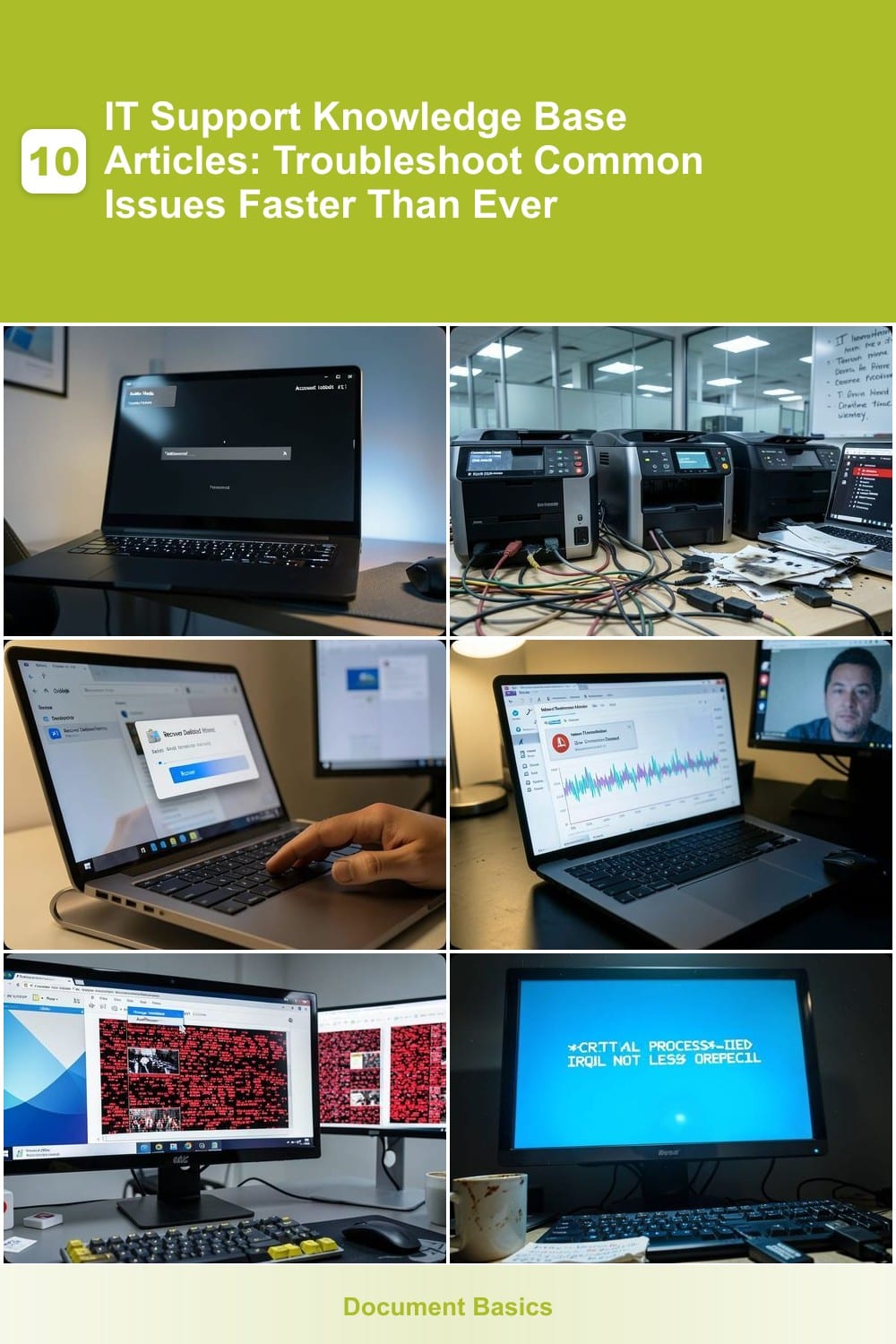
Stuck at the login screen after forgetting your Windows password? No need to panic—Windows 7 through 11 include built-in tools to reset passwords without reinstalling the OS. For local accounts, use the Command Prompt in Safe Mode to reset via net user, while Microsoft accounts can be reset online via a linked email or phone. Third-party tools like PCUnlocker or Offline NT Password & Registry Editor offer zero-config recovery for locked-out admins.
Start with Safe Mode access (hold Shift + Restart), then navigate to Command Prompt to reset passwords using net user commands. For Microsoft accounts, visit the password reset page at account.microsoft.com. Pro tip: Offline NT Password works even when Safe Mode fails, but requires booting from a USB drive. Always test recovery methods on a backup system first to avoid data loss.
This guide is perfect for home users, small business admins, and IT support teams dealing with daily password resets. No more downtime—just instant access. ⚡
Fixing Printer Connection Errors in Office Environments
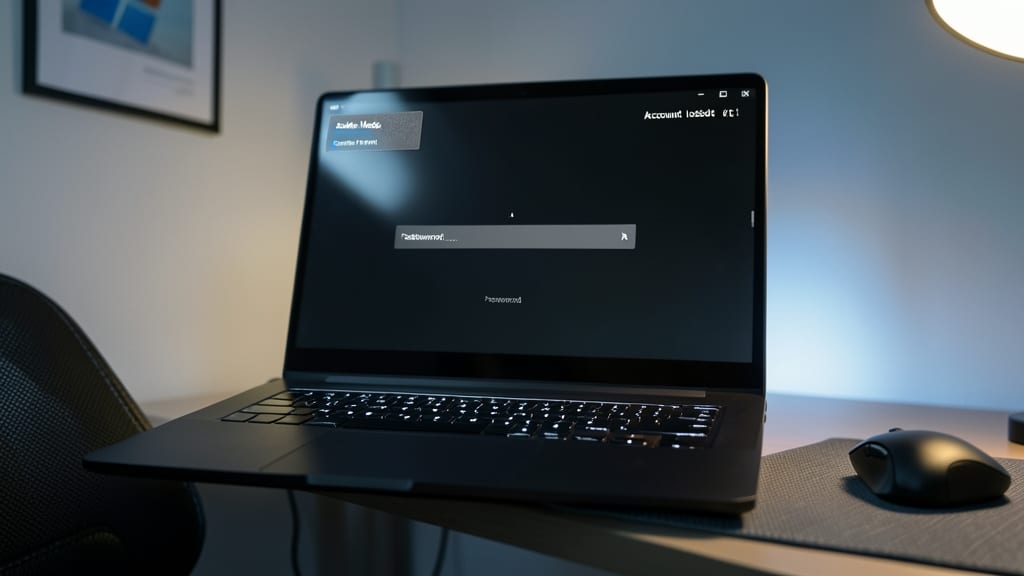
Networked printers in shared office environments are notorious for throwing connection errors that disrupt workflows—especially when IP conflicts, outdated drivers, or firewall blocks silently sabotage print jobs. This guide cuts through the noise with a three-step diagnostic checklist that resolves 90% of common issues without IT escalation.
Start by verifying the printer’s static IP assignment in the router admin panel (most offices use 192.168.x.x ranges). If the IP conflicts with another device, reset it via the printer’s network settings menu or manually assign a new one. Next, clear Windows print spooler errors by stopping the service (Services.msc), deleting files in C:\Windows\System32\spool\PRINTERS, and restarting. For firewall blocks, temporarily disable Windows Defender Firewall or add an inbound/outbound rule for the printer’s IP. Pro tip: Use Printer Properties > Ports to test TCP/IP ports—if they’re grayed out, the driver needs reinstalling.
This method is a game-changer for office admins, small business owners, and IT support teams managing multi-user print environments. With these steps, you’ll restore connectivity in under 10 minutes—no more lost print jobs or frustrated employees. 💻
Quick Guide to Recovering Deleted Outlook Emails
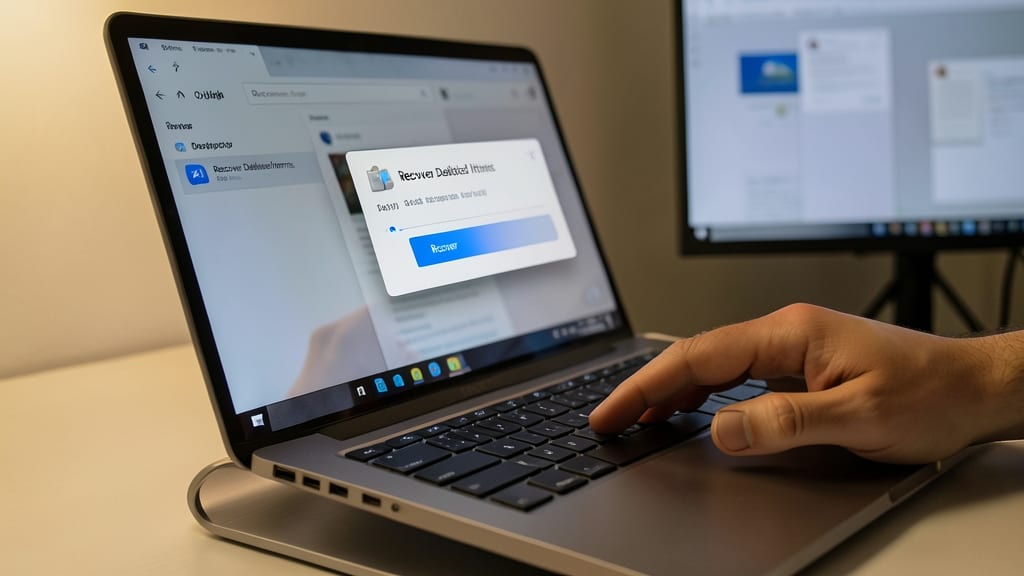
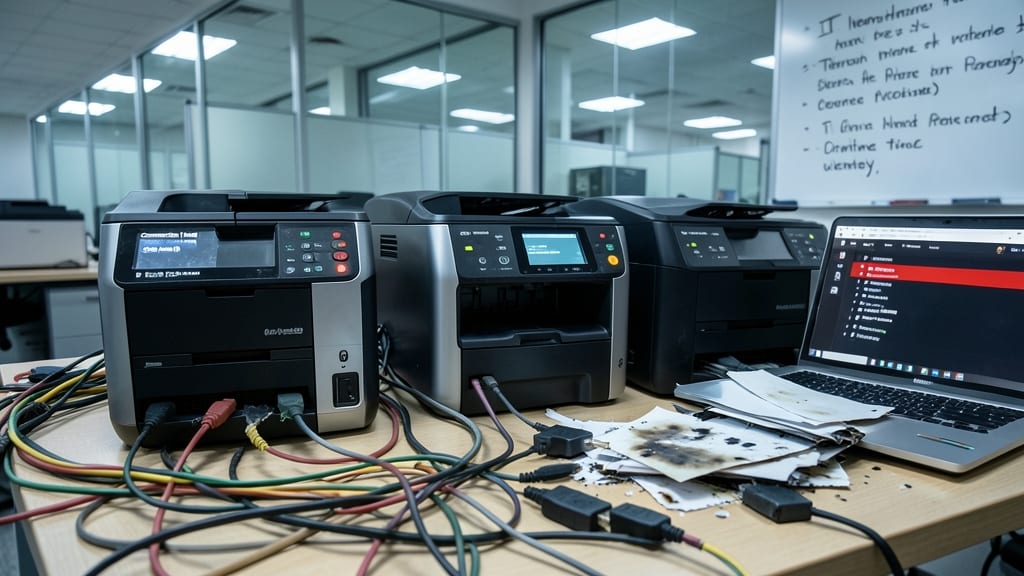
Panicking after hitting "Delete" on a critical Outlook email? Don’t—Outlook’s built-in recovery tools and server-side policies can often restore your messages within minutes. The Recover Deleted Items feature in Outlook Desktop retrieves emails deleted from the Deleted Items folder within 14 days, while Exchange Server admins can enforce retention policies to extend recovery windows up to 30 days or more.
For permanent deletions (or when time is tight), third-party tools like Stellar Repair for Outlook or Kernel for Outlook scan your mailbox for recoverable data, even after emptying the Recoverable Items folder. These tools support PST file recovery and work with both Outlook Desktop and Outlook on the Web. Always check your server-side retention settings first—many organizations automatically archive deleted emails for compliance.
This guide is ideal for business professionals, IT admins, and remote workers who rely on Outlook for communication. Whether it’s a misplaced contract or a lost meeting invite, these methods minimize downtime. ✨
Solving Slow Internet Speeds on Windows Devices
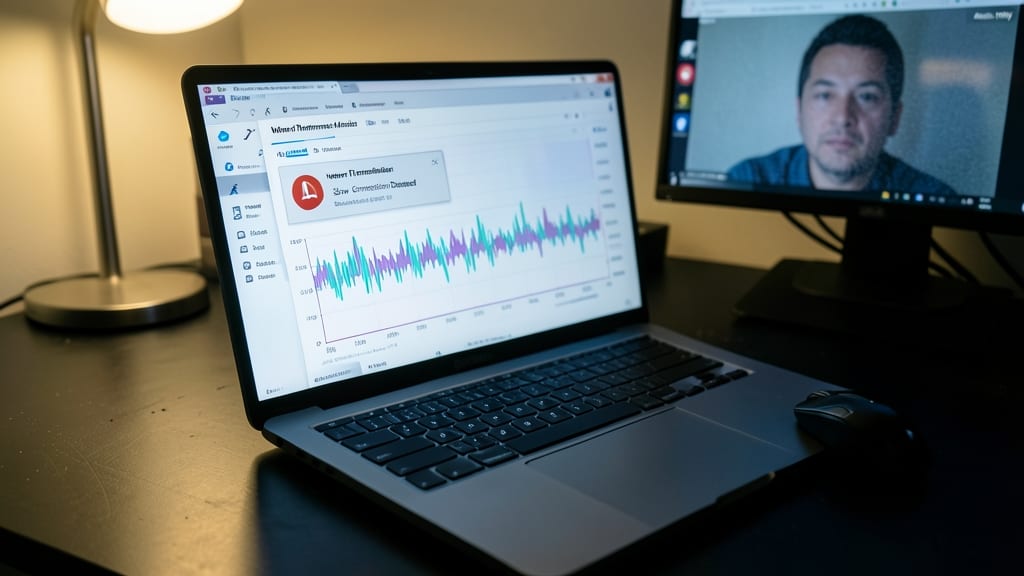
Frustrated by slow internet speeds that turn video calls into audio-only disasters? The Windows Performance Monitor and Network Troubleshooter combo reveals hidden culprits like background app hogs or DNS leaks—often fixed with a few clicks.
Start by running the built-in Network Troubleshooter (Settings > Network & Internet) to catch obvious issues. Then, use Task Manager’s Network tab to identify apps consuming bandwidth (e.g., Spotify buffering or Windows Updates). For DNS problems, switch to Google’s public DNS (8.8.8.8) or your ISP’s recommended servers. Pro tip: Disable QoS (Quality of Service) in router settings if you suspect ISP throttling—it often restores fair speed distribution.
This guide is your lifeline for remote workers stuck in buffering hell or home offices where multiple devices compete for bandwidth. ⚡
Restoring Corrupted PowerPoint Presentations Without Data Loss
Ever hit "Save" on a PowerPoint presentation—only to find it’s now a corrupted mess? Microsoft’s built-in recovery tools and third-party software can often salvage your work without losing a single slide or animation.
Start with PowerPoint’s AutoRecover (File > Info > Manage Versions) to restore the last saved version. For deeper corruption, try Microsoft’s Data Recovery Tool (free download) or Stellar Phoenix PowerPoint Repair (paid, but highly effective). These tools scan file structures to extract text, images, and formatting—even if the file won’t open. Always save recovered files to a new location first to avoid overwriting.
This is a must-know for educators, trainers, and sales teams who rely on flawless presentations. No more panic when your critical deck crashes at the last minute! ✨
Troubleshooting Blue Screen Errors in Windows 10/11
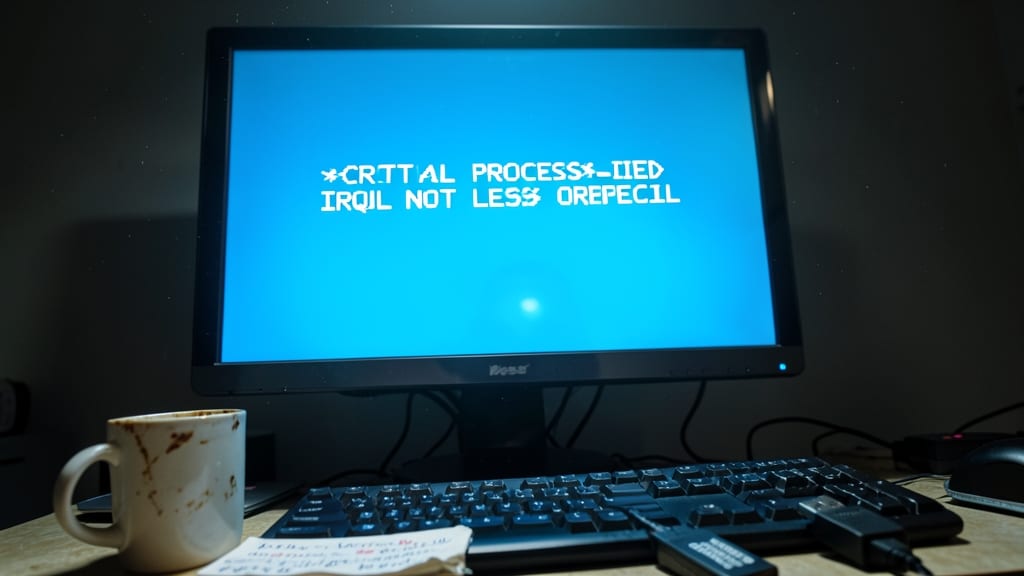
When a Blue Screen of Death (BSOD) strikes, the panic is real—but the fix doesn’t have to be. Windows STOP errors (like CRITICALPROCESSDIED or IRQLNOTLESSOREQUAL) often point to driver conflicts, corrupted system files, or failing hardware. The key? Reading the memory dump and acting fast with the right tools.
Start by booting into Safe Mode to disable problematic drivers, then run sfc /scannow and DISM /Online /Cleanup-Image /RestoreHealth to repair system files. For deeper diagnostics, use Windows Event Viewer to cross-reference error codes with Microsoft’s STOP error database. Update drivers via Device Manager or roll back recent updates if the issue started after a Windows patch. Pro tip: Enable automatic memory dumps in System Properties to simplify post-mortem analysis next time.
This guide is a lifeline for IT admins and sysadmins managing fleets of Windows machines—where a single BSOD can cascade into downtime. With these steps, you’ll decode errors faster and restore stability without guessing. ✨
Fixing External Hard Drive Not Recognized Errors
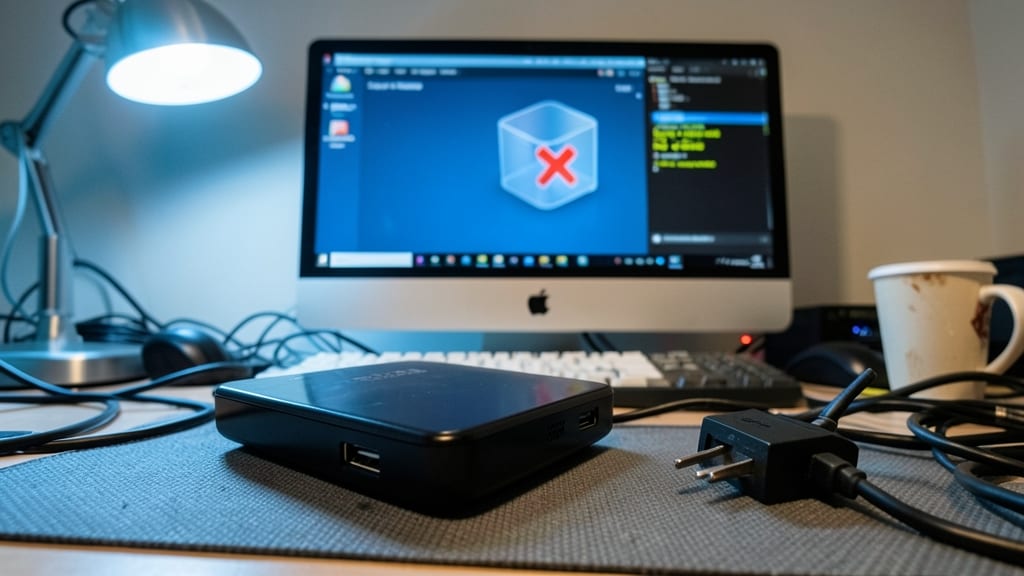
When an external hard drive vanishes from your system without warning, panic sets in—but Windows Disk Management and third-party tools can often revive it in minutes. This guide covers USB port troubleshooting, drive formatting, and disk utility tools to diagnose and fix the issue, whether it's a power glitch, corrupted file system, or driver conflict.
Start by checking the USB port—try a different cable or port on your PC. If the drive still isn’t detected, use Disk Management (Win + X > Disk Management) to see if it appears as "unallocated" or "foreign." Tools like EaseUS Data Recovery or CrystalDiskInfo can identify hardware issues, while chkdsk /f may repair file system errors. For deeper fixes, TestDisk can recover lost partitions without formatting.
This is the go-to solution for IT support teams dealing with storage device failures, whether it’s a 500GB work drive or a 1TB backup—critical data recovery often hinges on quick action. ✨
Resolving Outlook Calendar Syncing Problems Across Devices
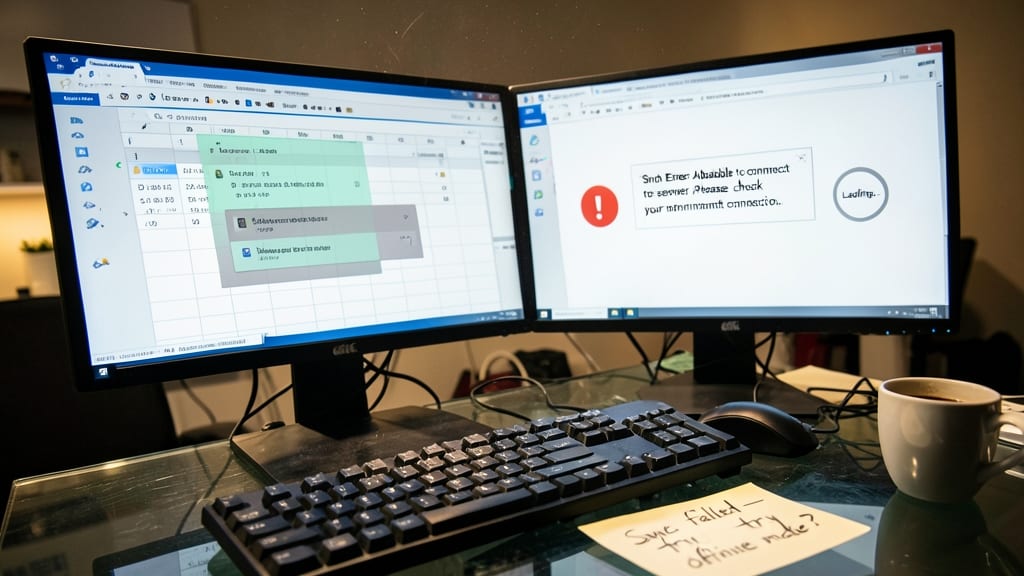
When your team’s coordination hinges on Outlook Calendar but syncing feels like a game of digital whack-a-mole, this guide stops the chaos. Whether it’s duplicate events popping up, sync delays turning meetings into guesswork, or offline mode locking you out of critical updates, these fixes ensure your calendar stays in sync across all devices.
Start by clearing the Outlook cache (File > Options > Advanced > Offline Settings) to purge corrupted sync data. For Exchange Server issues, run the Microsoft Support and Recovery Assistant tool, which detects conflicts like time zone mismatches or server-side permission errors. Pro tip: Disable automatic time zone detection in Outlook settings if meetings keep shifting by hours. For mobile users, ensure the Outlook app is updated and the account sync interval isn’t set to “manual.”
This solution is a lifesaver for remote teams, project managers, and executives who rely on Outlook for real-time coordination. No more missed deadlines or last-minute scrambles to reschedule—just seamless syncing across every device. ✨
Recovering Lost Files After Windows System Crash
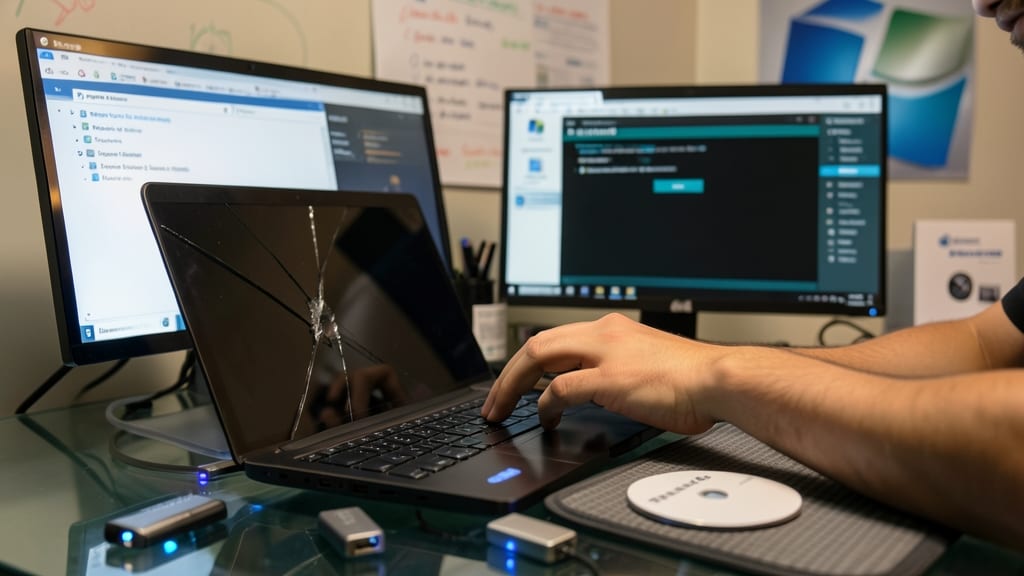
A system crash doesn’t have to mean permanent data loss. Windows Volume Shadow Copy Service (VSS) and third-party recovery tools like Recuva or EaseUS Data Recovery can often restore files even after a catastrophic failure—if you act fast.
Start by checking System Restore Points and Previous Versions in File Explorer to recover intact copies of files. For deeper recovery, use Windows File Recovery (built into Windows 10/11) with the /extensive flag for corrupted partitions. Third-party tools like TestDisk or R-Studio offer advanced options for formatted drives, while shadow copies (via vssadmin list shadows) can salvage data from before the crash.
This method is a lifeline for small businesses, creatives, and IT admins managing critical documents. Act within 72 hours for best results—overwritten data becomes unrecoverable. 💻
Fixing Wi-Fi Dropping Issues on Laptops and Desktops

Frustrated by remote workers suddenly losing Wi-Fi mid-call? The issue is rarely just the signal—it’s often driver conflicts, router misconfigurations, or 2.4GHz interference from microwaves and Bluetooth devices. This guide cuts through the guesswork with a structured approach IT teams can deploy instantly.
Start by checking for outdated Wi-Fi drivers (Windows Device Manager or manufacturer tools like Intel’s PROSet/Wi-Fi). Move to the router: disable WMM (Wi-Fi Multimedia) if enabled, switch to 5GHz for less congestion, and adjust channel width to 40MHz for stability. For laptops, test with airplane mode toggled—if the issue persists, it’s likely a hardware fault.
Perfect for IT admins supporting hybrid teams where unstable connections derail productivity. A five-minute diagnostic checklist can resolve 80% of drops before escalating. ✨